

How to Build Salesforce Document Templates in Word (Merge Fields + Conditional Blocks)
13 May 2026
Table of Contents
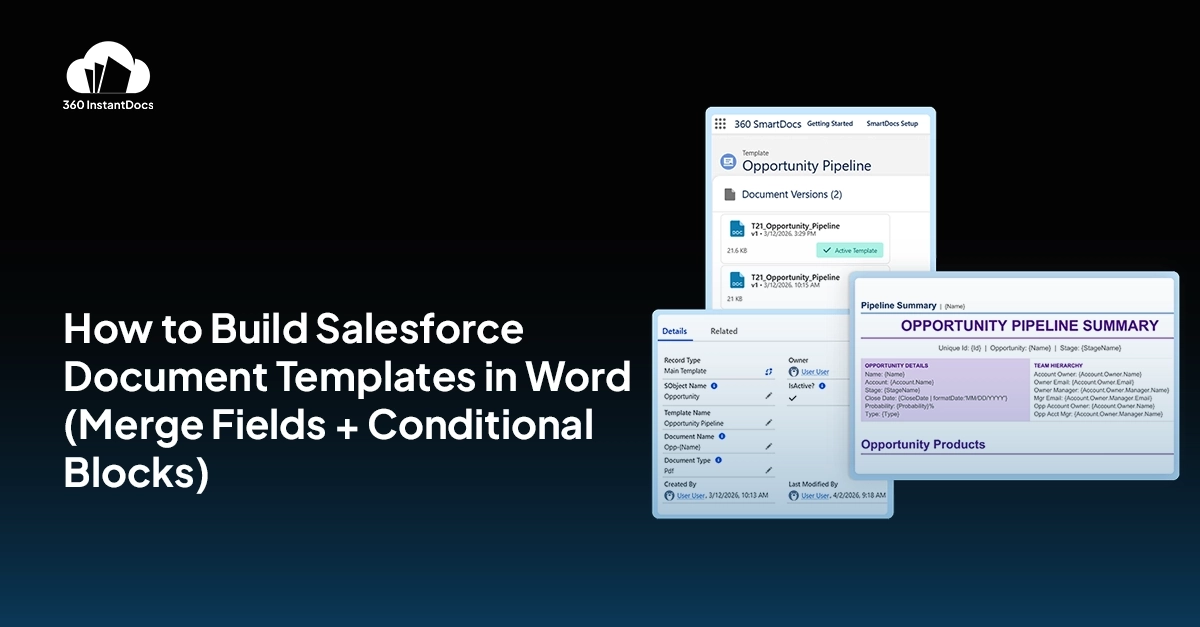
Most sales and ops teams have the same problem. All the right data, client name, deal value, product list, billing address is sitting in Salesforce. But every time someone needs to send a proposal, quote, or contract, someone has to manually open a Word document and type it all in again. But the question is how you build Salesforce document templates in Word.
Building a proper Salesforce Word document template with merge fields and conditional blocks solves this completely. Your documents write themselves from live CRM data. No copy-paste. No version confusion. No errors.
This blog covers what Salesforce merge fields in Word are, how conditional document templates in Salesforce work, when you need a Microsoft Word Add-in for Salesforce, and what Salesforce document merge looks like in practice.
Table of Contents
Why Do Sales Teams Still Manually Build Word Documents from Salesforce?
It’s a fair question. Salesforce has been around for over 20 years. Word even longer. And yet, the two tools have never had a clean, native way to talk to each other for document generation.
Teams that tried to fix this early ran into bad options: mail merge from Excel exports (fragile and error-prone), Visualforce PDF templates (locked into ugly formatting), or enterprise CPQ tools that cost a fortune and take months to implement. So, most teams give up and get stuck with copy-paste. Open the last proposal, update the client name, fix the pricing, save a new version.
The result is a folder full of “Proposal_Final_v3_FINAL_USE_THIS_ONE.docx” files, wrong figures going out to clients, and reps spending 45 minutes on admin that should take ten seconds. A well-built dynamic document template in Salesforce makes all of that disappear, and it’s far easier to set up than most people expect.
Stop spending time manually creating documents.

What Are Salesforce Merge Fields in Word and How Do They Work?
Salesforce merge fields in Word are placeholder tags that you insert into your Word template. When someone generates a document from a Salesforce record, each tag is automatically replaced with the live field value from that record.
So instead of typing a client’s name, you insert a merge field like {{Account.Name}}. Instead of manually entering a deal value, you use {{Opportunity.Amount | currency}}. When the document is generated from a specific Salesforce record, those tags become the actual data, specific to that client, that deal, that moment.
Common Salesforce merge fields in Word you’d use in a proposal or contract:
- {{Opportunity.Name}} : the opportunity name
- {{Account.Name}} : the account or client name
- {{Account.BillingStreet}} : the client’s billing address
- {{Opportunity.CloseDate | date:”MMMM D, YYYY”}} : formatted close date
- {{Opportunity.Amount | currency}} : deal value, formatted as currency
- {{Owner.Name}} : the assigned rep’s name
You can pull Salesforce merge fields from any standard or custom field on the primary object, and also from related objects : so a Salesforce Word document template built on an Opportunity can still pull in Account fields, Contact details, or custom object data from anywhere in the record’s relationship tree.
Note: Salesforce merge fields in Word don’t require manual typing or Apex code. A proper Microsoft Word Add-in for Salesforce lets you browse and insert fields through a point-and-click panel, no syntax to memorize.
What Is a Conditional Document Template in Salesforce?
A conditional document template in Salesforce is a Word template that shows or hides sections of content based on the values in a Salesforce record. Instead of maintaining five separate template files for five different deal types, you build one template that adapts itself automatically.
The logic works through conditional blocks, you wrap any content (a paragraph, a clause, a whole section) in an if/then rule tied to a Salesforce field. That content only appears in the generated document when the condition is true.
{{#if Opportunity.Amount > 50000}}
Premium SLA clause — only appears on enterprise deals.
{{/if}}
Real-world uses for conditional blocks in a dynamic document template in Salesforce:
- Show an enterprise SLA section only when deal value exceeds $50,000
- Include GDPR clauses only for EU-based accounts
- Add a renewal pricing table only when the Opportunity Type is “Renewal”
- Display a discount approval paragraph only when a discount field is populated
- Show region-specific legal terms based on the Account’s country field
One conditional Salesforce document template covers every scenario. When you need to update the pricing language or change a legal clause, you change it once and every document generated after that reflects the update automatically. No more hunting down which version of which file has the latest terms.
See how a real sales team cut proposal time from 40 minutes to under a minute.

Can You Really Build a Dynamic Salesforce Word Template Without a Developer?
Yes, and this is the part that surprises most people. Building a dynamic document template in Salesforce using a Microsoft Word
Add-in doesn’t require Apex, a Salesforce admin, or a developer. If you can format a Word document, you can build the template.
A Microsoft Word Add-in for Salesforce like 360 InstantDocs works as a side panel inside Word. You authenticate with your Salesforce org once, choose which object the template is based on (e.g., Opportunity, Account, or Case), and then browse your fields directly in the panel. Click on a field to insert the merge tag at your cursor. Build your conditional blocks through the same interface.
The template itself is just a regular Word document, all your existing formatting, branding, headers, tables, and layouts work exactly as they always have. The only difference is that some of the text is now live merge fields instead of static content.
How Does Salesforce Document Merge Actually Work at Generation Time?
When a Salesforce user needs a document, the Salesforce document merge process is straightforward. They open the Salesforce record- an Opportunity, a Contact, a Case, whatever the template is built on and click the document generation button. They select the template they need. They click Generate.
The Salesforce document merge engine reads every field tag in the Word template, fetches the corresponding value from the live Salesforce record, evaluates every conditional block to decide what content to show or hide, and loops through any related list data (like product line items) to build out repeating sections. The finished Word document or PDF, or both is ready in seconds and automatically attached to the Salesforce record.
There’s no exported spreadsheet, no intermediate step, no browser tab switching. The document is generated from Salesforce and lives in Salesforce. The rep picks it up from the record and sends it.
Why Use a Microsoft Word Add-in for Salesforce Instead of Other Document Tools?
There are document generation tools that work with Salesforce but don’t use Word, they have their own editors, their own output formats, their own design constraints. Some are fine. But most sales and legal teams find real problems with them in practice.
The documents they output often can’t be edited after generation. The formatting options are limited compared to Word. And when a client opens the file and tries to redline a contract clause, it breaks. Word is still the standard for business documents that get reviewed, negotiated, and signed and your clients expect to receive files they can work with.
A Microsoft Word Add-in for Salesforce keeps your entire workflow inside Word. The template is a real .docx file. The output is a real .docx file. Every Word feature, tracked changes, headers and footers, section breaks, complex tables, branded styles works as expected. There’s no “export and then fix the formatting” step, because nothing needs fixing.
How Does 360 InstantDocs Handle Salesforce Word Document Templates?
360 InstantDocs is a document automation platform built specifically to build Salesforce document templates in Word. The Word Add-in connects directly to your Salesforce org and exposes every object, field, and relationship through a searchable side panel. Template authors insert Salesforce merge fields in Word, build conditional document blocks, and set up loops for related list data, all without leaving Word.
Templates are stored in a central library and can be assigned by record type, user profile, or folder. Generation happens from inside the Salesforce record with one click. The output is attached to the record automatically, and can trigger any downstream Salesforce workflow, approval processes, email alerts, chatter notifications.
360 InstantDocs supports both .docx and PDF output. It handles nested conditionals, multi-level loops, related object fields, custom objects, and formula-driven formatting. And because the templates are real Word files, your legal and design teams can own them without any training beyond what they already know.
No code, no admin ticket, no implementation project. 360 InstantDocs is set up by connecting to Salesforce via OAuth and installing the Word Add-in from Microsoft AppSource. That’s it.
Stop Letting Your Documents Slow You Down
The gap between your Salesforce data and your Word documents isn’t a technology problem anymore. It’s a habit problem. The technology to build Salesforce document templates in Word with live Salesforce merge fields, conditional blocks, and automatic Salesforce document merge is mature, accessible, and genuinely easy to set up without a developer or a lengthy implementation.
What you get on the other side is meaningful: proposals generated in seconds instead of 40 minutes, contracts that are always on the right version, documents that adapt themselves to every deal type without maintaining a separate file for each one. Your reps spend less time on admin. Your documents go out faster. And the kind of embarrassing errors that come from manual copy-paste, wrong client name, last quarter’s pricing, outdated legal terms, stop happening.
Not sure how merge fields or conditional blocks will work with your Salesforce org?


Solve It with Salesforce. We’ll Show You How.
AI. Apps. Experts. Everything you need to win with Salesforce under one roof.Frequently Asked Questions
How do you create a Salesforce document template in Word?
To create a Salesforce document template in Word, you need a Microsoft Word Add-in that connects to your Salesforce org, like 360 InstantDocs. Once installed, you open a Word document, authenticate with Salesforce through the Add-in side panel, and choose the Salesforce object your template is based on (such as Opportunity or Account). From there, you design your document normally in Word: headings, tables, branding, and insert Salesforce merge fields wherever you want live CRM data to appear.
How do merge fields work in Salesforce templates?
Salesforce merge fields in Word templates are placeholder tags that map to specific fields on a Salesforce record. When a document is generated, the merge engine reads each tag, looks up the corresponding value on the Salesforce record being used, and replaces the tag with the actual data. For example, a tag like {{Opportunity.Name}} gets replaced with the actual opportunity name, and {{Opportunity.Amount | currency}} gets replaced with the deal value formatted as currency.
Can you use Microsoft Word for Salesforce templates?
Yes, and for most teams, Microsoft Word is the best choice for building Salesforce document templates. Word gives you complete control over formatting, layout, branding, and document structure in a way that proprietary document editors inside Salesforce simply don't match. With a Microsoft Word Add-in for Salesforce like 360 InstantDocs, you build the template entirely inside Word using all the formatting tools you already know.
How do conditional blocks work in document templates?
Conditional blocks in a Salesforce document template are sections of content wrapped in an if/then rule. You define a condition based on a Salesforce field value, for example, if the Opportunity Amount is greater than $50,000, or if the Account's country is "Germany", and any content inside that block only appears in the generated document when the condition is true. If the condition is false, that section is skipped entirely and the document flows as if it was never there.
Can Salesforce templates pull related record data?
Yes. A Salesforce Word document template can pull data from the primary record's related objects, not just the object the template is built on. This includes parent lookup fields (for example, pulling Account fields from within an Opportunity template), child related lists (for example, looping through all Opportunity Line Items to build a product table), and fields from custom objects linked to the record. In 360 InstantDocs, related list data is handled using loop blocks — the template repeats a defined section (like a table row) once for each related record, automatically.

About the author
Editorial TeamThe Editorial Team at 360 Degree Cloud brings together seasoned marketers, Salesforce specialists, and technology writers who are passionate about simplifying complex ideas into meaningful insights. With deep expertise in Salesforce solutions, B2B SaaS, and digital transformation, the team curates thought leadership content, industry trends, and practical guides that help businesses navigate growth with clarity and confidence. Every piece we publish reflects our commitment to delivering value, fostering innovation, and connecting readers with the evolving Salesforce ecosystem.
Recent Blogs
 Comparisons & Buying Guides
Top CLM & Contract Automation Platforms for Salesforce Teams in 2026
360 InstantDocs is one of the best Salesforce document generation tools for teams that want fast, native contract creation without adopting a full CLM platform they don’t actually need.…
Read More Salesforce Document Automation
Salesforce Excel Add-In: How to Connect, Export, and Generate Excel Reports Without Code
Word isn’t the only format a business runs on. Finance wants a formatted Excel report with real calculations built in, not just a data dump. Sales ops…
Read More Comparisons & Buying Guides
OmniStudio Document Generation: Limitations and When to Use a Third-Party App
OmniStudio includes document generation capabilities through DocGen and its integration with Vlocity. For teams on Industry Cloud, or using OmniStudio as their primary process automation layer, it can work well for…
Read MoreReady to Make the Most Out of Your Salesforce Instance?
Our Salesforce aces would be happy to help you. Just drop us a line at contact@360degreecloud.com, and we’ll take it from there!
Subscribe to our newsletter
Stay ahead with expert insights, industry trends, and exclusive resources—delivered straight to your inbox.
