

Achieve Successful Salesforce Mailchimp Integration with a Salesforce Integration Consultant
20 May 2024
Table of Contents
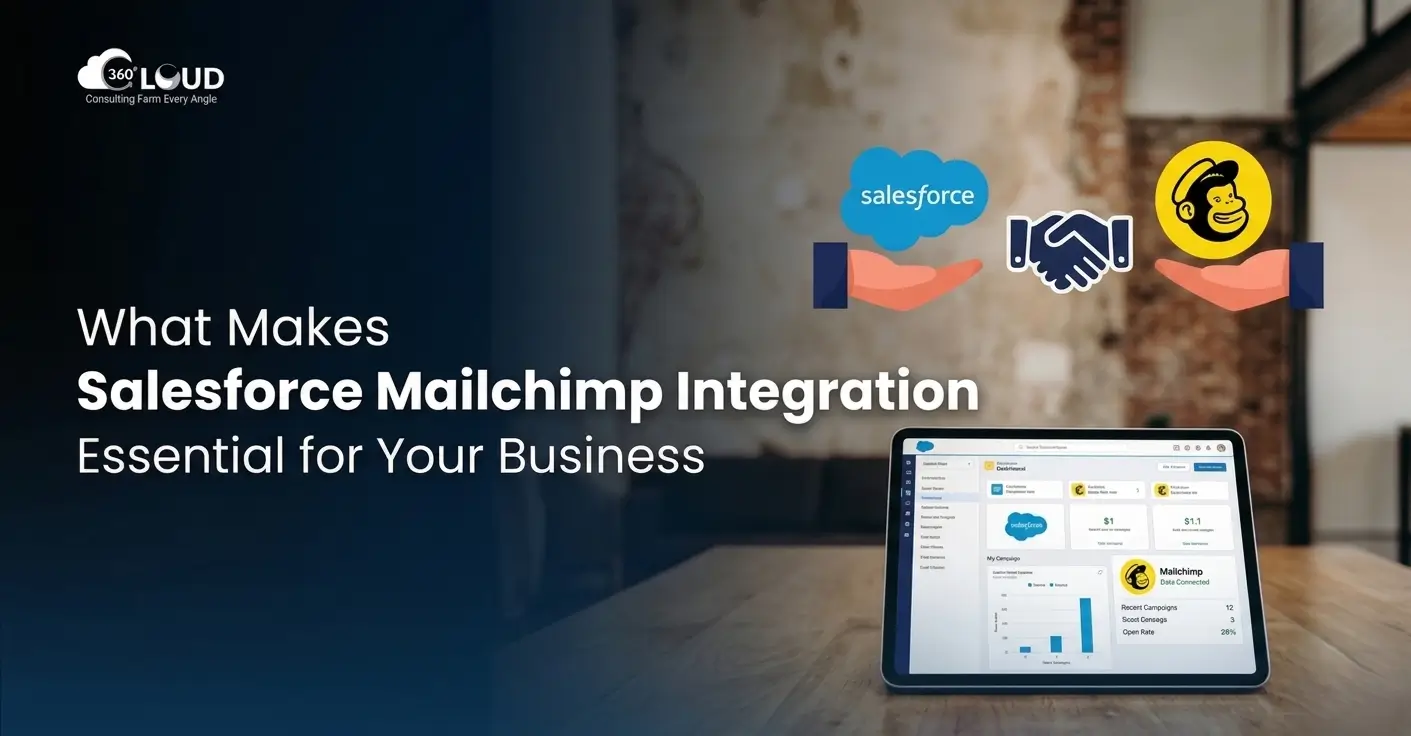
Your contacts live in Salesforce. Your campaigns run in Mailchimp. And every week, someone on your marketing team exports a CSV, cleans it up, imports it, and prays that the unsubscribes synced before the next send. They didn’t — or at least, not all of them.
This is the everyday reality of running Mailchimp and Salesforce side by side without a proper integration. It’s not a crisis — it’s just friction that compounds over time into missed leads, compliance gaps, and campaigns that go out to people who shouldn’t be on the list anymore.
This guide covers how the Salesforce–Mailchimp integration actually works, which method makes sense for your setup, where things typically break down, and what a Salesforce integration consultant does differently compared to a DIY AppExchange install. We work on these integrations at 360 Degree Cloud regularly — this is what we’ve learned doing it, not just writing about it.
Table of Contents
What Does Salesforce Mailchimp Integration Actually Do?
At its core, it creates an automated link between the two platforms so contact data, campaign activity, and subscription status move between them without anyone pushing a button. A new lead added to Salesforce shows up in the right Mailchimp audience. Someone who clicks an email in Mailchimp has that engagement logged against their Salesforce record. An unsubscribe in Mailchimp reflects immediately in Salesforce — no manual check required.
In practice, this means your sales team finally knows which campaigns a lead has interacted with before getting on a call. Your marketing team can segment Mailchimp audiences based on Salesforce fields — deal stage, lead source, account type — instead of whatever columns happened to make it into last week’s export.
It also means compliance gets easier. When an unsubscribe happens in Mailchimp and immediately flags in Salesforce, you’re not relying on someone to manually cross-reference a list before the next send.
Three Ways to Connect Mailchimp and Salesforce
There’s no single right answer here — the best approach depends on how complex your Salesforce setup is, how many Mailchimp audiences you’re managing, and whether you have a developer available. Here’s an honest breakdown of each option.
| Method | Best For | Complexity | Key Limitation | Cost |
|---|---|---|---|---|
| Mailchimp for Salesforce (AppExchange) | Simple setups, single audience | Low | One audience per org. Hourly sync only. | Free |
| Third-Party Connector (Zapier, Workato, Cazoomi) | Multi-audience, no-code automation | Moderate | Added vendor, consumes API calls | $50–$500+/mo |
| Custom API / Consultant-Built | Complex workflows, custom objects | High | Requires development and maintenance | Project-based |
The Free AppExchange App
Mailchimp’s official app on AppExchange is free, takes about an hour to install, and handles the basics — syncing contacts, tracking campaign engagement on Lead and Contact records, and pushing new Salesforce records into Mailchimp audiences. For a small team running a single newsletter to a single list, it’s genuinely fine.
The wall you hit: it only syncs one Mailchimp audience per Salesforce org. If you have regional lists, product-specific audiences, or multiple brands, that’s an immediate problem. Syncs also run hourly at best, so any campaign that needs timely, behavior-triggered sends is working with stale data.
Third-Party Connectors
Tools like Zapier, Workato, and Cazoomi SyncApps sit between Salesforce and Mailchimp and handle more complex scenarios — multiple audiences, custom field mapping, filter logic, near-real-time triggers. They’re a reasonable middle ground when you’ve outgrown the free app but don’t need a fully custom build.
The honest trade-off: you’re adding a third platform to manage, every sync uses Salesforce API calls (which can cap out on high-volume orgs), and anything beyond a basic trigger-action setup usually requires more configuration than the “no-code” marketing suggests.
Custom API Integration
For businesses with complex Salesforce data structures — custom objects, multi-step workflows, field logic that doesn’t exist in Mailchimp’s standard schema — a consultant-built integration using Salesforce and Mailchimp APIs directly is the cleanest long-term solution. You control exactly what syncs, when, and in which direction. The cost is higher upfront, but you’re not paying an ongoing connector subscription or hitting arbitrary platform limits.
How to Set Up the Mailchimp for Salesforce App (Step by Step)
If you’re starting with the free AppExchange app, here’s what the setup actually looks like — including the steps where people most commonly run into trouble.
- 1
Install from AppExchange.Search “Mailchimp for Salesforce” on AppExchange. Install into a sandbox first — not directly into production. It takes about 10 minutes. You’ll be prompted to choose whether to install for all users or specific profiles; specific profiles is cleaner.
- 2
Authorize your Mailchimp account.Open the Mailchimp Setup tab in Salesforce. You’ll go through an OAuth flow to authorize the connection. Log in with the Mailchimp account that has access to the audience you want to sync — not a personal account, ideally a shared admin account.
- 3
Select your audience — and remember you only get one.This is the decision most teams don’t think through carefully enough. You can only link one Mailchimp audience per Salesforce org. If you have multiple lists that need syncing, the free app isn’t the right tool.
- 4
Set sync direction.Mailchimp → Salesforce pushes subscriber data in as Leads or Contacts. Salesforce → Mailchimp adds or updates records in your audience. You can run both, but make a deliberate choice about which system is source of truth for each field — otherwise you’ll get overwrites you didn’t expect.
- 5
Map your fields — only the ones that matter.Stick to fields you’ll actually use: First Name, Last Name, Email, Subscription Status, Lead Source. Mapping everything creates noise and increases the chance of sync conflicts. You can always add more later — you can’t easily un-map a field that’s already caused data problems.
- 6
Assign permission sets to users.The app ships with two permission sets: Mailchimp User (view campaign data) and Mailchimp Admin (configure sync and mappings). Assign them in Setup → Users → Permission Set Assignments. Don’t skip this step or nobody will see the Mailchimp components on Lead and Contact records.
- 7
Test with a small batch before enabling full sync.Pick 10–20 records, run the sync manually, and verify the results in both systems. Check the Mailchimp Sync Logs tab in Salesforce — it shows what succeeded, what failed, and why. Only enable the scheduled sync once you’ve confirmed clean results.
Field Mapping: Where Most Integrations Go Wrong
Field mapping sounds straightforward until you’re actually doing it. Mailchimp stores “Full Name” as a single merge field. Salesforce splits it into First Name and Last Name. One system calls it “email address,” the other calls it “Email.” A tag in Mailchimp has no natural equivalent in a standard Salesforce field. These gaps — not the install itself — are where integration projects stall.
| Mailchimp Field | Salesforce Field | Notes | Priority |
|---|---|---|---|
| Email Address | Primary match key — must be exact | Required | |
| FNAME / LNAME | FirstName / LastName | Map separately — Mailchimp splits on save | Required |
| Status (subscribed / unsubscribed) | Email Opt Out (HasOptedOutOfEmail) | Critical for compliance. Salesforce = source of truth. | Required |
| Tags | Custom text field or Campaign Member | Requires a custom field in SF — no native equivalent | Recommended |
| Member Rating | Custom number field | Useful for scoring, not available out of the box | Optional |
| Last Campaign Activity | Activity History / Custom field | Logged automatically via app components | Optional |
What You Actually Gain When the Integration Is Working
of a sales rep’s workweek goes to actual selling, according to Salesforce’s State of Sales report. The rest is admin — including switching between tools, re-entering data, and chasing information that should already be in the CRM. A working Mailchimp integration removes at least one of those manual loops.
Sales reps actually know what marketing has sent
When Mailchimp campaign activity syncs into Salesforce, a rep can open a Lead record and see which emails were sent, which were opened, and what was clicked — before picking up the phone. That context changes the conversation. “I saw you downloaded our pricing guide” lands differently than a cold opener.
Mailchimp segments get sharper
Without the integration, Mailchimp segments are based on whatever made it into the export — usually just name, email, and maybe a job title. With live Salesforce data flowing in, you can segment by deal stage, product interest, account type, or any custom field in your CRM. The campaigns actually reach the right people.
Unsubscribes don’t fall through the cracks
When someone unsubscribes in Mailchimp and that status syncs immediately to Salesforce’s Email Opt Out field, nobody accidentally adds them back into a campaign next month. This is one of the areas where a broken or delayed integration creates real compliance exposure — especially if you’re under GDPR or CAN-SPAM obligations.
New leads get into Mailchimp immediately
A new lead created in Salesforce — from a form fill, an event, a direct sales entry — can appear in the appropriate Mailchimp audience within the same sync cycle. No weekly batch upload, no “I think I added them last week” ambiguity.
Where This Integration Breaks Down
The “one audience” limit hits harder than people expect
The free AppExchange app syncs one Mailchimp audience per Salesforce org. That sounds fine until your business runs a newsletter, a product update list, and a re-engagement list that all need different Salesforce data. The moment you need two audiences, the free app stops being a solution.
Duplicate records compound quickly
Mailchimp matches on email address. If the same email exists on a Lead and a Contact in Salesforce, or if someone used two different email formats over time, you’ll end up with sync conflicts and duplicates on both sides. This gets worse as your database grows. Set up Salesforce’s native Duplicate Management rules before you start syncing large volumes.
API limits catch high-volume orgs off guard
Every sync cycle consumes Salesforce API calls. Most orgs don’t think about this until a busy campaign week pushes them close to their daily limit. If you’re running other integrations on the same org — ERP, support tools, marketing automation — Mailchimp sync is competing for those same calls. Check Setup → System Overview to see where you stand before enabling frequent sync schedules.
Custom objects and non-standard fields don’t sync at all
The AppExchange app works with standard Salesforce objects — Leads and Contacts. If your business tracks meaningful customer data on custom objects (project records, subscription objects, service history), none of that is available to Mailchimp through the standard connector. You’d need a custom API solution to pull from those.
The sync breaks silently after platform updates
Salesforce releases updates three times a year. Mailchimp releases updates of its own. Occasionally, one of those changes breaks something in the integration — a field that got renamed, an API version that got retired, an OAuth token that expired. Nobody notices for two weeks. The Sync Logs tab catches most of this, but only if someone is actually checking it.
“The integration usually works fine for the first three months. Then someone adds a new list, or changes a field name in Salesforce, or the Mailchimp plan gets upgraded — and something quietly stops syncing. That’s when we get the call.”
— 360 Degree Cloud Integration Practice
Best Practices for Keeping the Integration Clean
Make Salesforce the opt-out source of truth
When someone unsubscribes in Mailchimp, that needs to reflect in Salesforce’s Email Opt Out field immediately — not on the next hourly sync, not when someone manually checks. Use Salesforce Flow Builder to ensure that once a contact is marked opted-out, they can’t be quietly added back into a campaign by a Salesforce-to-Mailchimp sync override.
Run duplicate management before your first big sync
Enable Salesforce’s Duplicate Management rules before you sync more than a few hundred records. Find and merge duplicate Leads and Contacts that share an email address first. Sending this to Mailchimp pre-cleaned saves a significant amount of post-sync cleanup.
Add the Mailchimp components to Lead and Contact page layouts
The integration installs Visualforce components that show audience membership, last campaign received, and engagement metrics directly on the record. These only appear if you add them to the page layout. Most teams skip this step and then wonder why their sales team can’t see any Mailchimp data in Salesforce.
Check the Sync Logs weekly, not when something breaks
The Mailchimp Sync Logs tab in Salesforce shows every sync event — what worked, what failed, and why. Review it on a regular cadence rather than waiting for someone to notice records aren’t appearing. The earlier you catch a sync error, the less data cleanup is involved.
Watch your API usage, especially if you have other integrations running
Check Setup → System Overview monthly to see how close your org is getting to API limits. If Mailchimp, your ERP, and your support platform are all syncing simultaneously, you can hit the daily cap faster than expected. If you’re consistently above 80% of your limit, either reduce sync frequency or talk to Salesforce about your API allocation.
What a Salesforce Integration Consultant Does Differently
The AppExchange app is self-serve by design. That’s useful if your setup is straightforward. But most Salesforce orgs that have been in use for a few years aren’t straightforward — they have custom fields, non-standard objects, page layouts that haven’t been cleaned up, and data that accumulated before anyone thought carefully about quality.
At 360 Degree Cloud, we approach this integration differently from a DIY install. We start with your Salesforce data model — what objects exist, which fields contain the information your marketing team actually needs, and where the duplicates and quality issues live. Before anything syncs, we document the field mapping in detail and flag the decisions that need to be made explicitly (sync direction, conflict resolution, opt-out handling).
If the free app covers your use case, we’ll tell you that and show you how to configure it properly. If you’re running multiple Mailchimp audiences, using custom objects, or need campaign triggers based on Salesforce workflow logic, we’ll build the integration that handles it — API-level, not connector-dependent.
After go-live, we keep an eye on it. Sync logs, API usage, platform update compatibility — all of that gets monitored rather than left to chance.
Categories

Solve It with Salesforce. We’ll Show You How.
AI. Apps. Experts. Everything you need to win with Salesforce under one roof.Frequently Asked Questions
Is the Mailchimp for Salesforce AppExchange app free?
Yes, the app itself is free to install from AppExchange. You do need a Salesforce edition that includes API access — Essentials doesn't. And you need a Mailchimp account with at least Manager-level access to the audience you're syncing. The free app covers one audience per org, hourly syncs, and standard Lead/Contact objects only.
Can I sync multiple Mailchimp audiences with one Salesforce org?
Not with the free AppExchange app — it limits you to one audience per org. To sync multiple audiences you'll need either a paid third-party connector (Cazoomi SyncApps, ChimpConnect) or a custom API-built integration. This is one of the most common reasons teams end up needing a consultant rather than a self-serve tool.
What happens to unsubscribes — do they sync automatically?
With the standard app, unsubscribes sync on the next scheduled cycle — which is hourly at best. They update the Mailchimp Status field on the Lead or Contact record. For this to actually prevent someone from being re-added to a campaign, you need to configure Salesforce so that the Email Opt Out field is treated as authoritative and can't be overwritten by a subsequent Salesforce-to-Mailchimp sync push.
Can I trigger Mailchimp campaigns based on Salesforce data changes?
Not natively with the AppExchange app — it doesn't support event-based triggers from Salesforce. To trigger a Mailchimp campaign when a Salesforce deal stage changes or a custom field updates, you'd need Salesforce Flow Builder combined with a third-party connector or a custom API integration. This is a common use case that requires more than the free app provides.
Does the integration work with custom Salesforce objects?
The standard AppExchange app only works with Leads and Contacts. If your business tracks customer data on custom objects — subscription records, project objects, event attendance — that data isn't accessible to Mailchimp through the free connector. A custom API integration is the only way to pull from non-standard Salesforce objects.
How long does it take to set up the Salesforce Mailchimp integration?
The AppExchange app itself installs in under an hour. Basic configuration — connecting accounts, selecting the audience, setting sync direction — takes another hour or two. Field mapping, permission setup, page layout customization, and testing with real records typically adds a day of work. For a custom API-built integration handling multiple audiences, custom objects, or complex workflow logic, budget 2–4 weeks depending on data complexity.

About the author
Editorial TeamThe Editorial Team at 360 Degree Cloud brings together seasoned marketers, Salesforce specialists, and technology writers who are passionate about simplifying complex ideas into meaningful insights. With deep expertise in Salesforce solutions, B2B SaaS, and digital transformation, the team curates thought leadership content, industry trends, and practical guides that help businesses navigate growth with clarity and confidence. Every piece we publish reflects our commitment to delivering value, fostering innovation, and connecting readers with the evolving Salesforce ecosystem.
Recent Blogs
 Salesforce Clouds
Salesforce Commerce Cloud Implementation: The 2026 Guide for B2B and B2C Commerce Teams
Commerce has always been competitive. But in 2026, the bar has shifted in ways that are hard to ignore. Whether someone is a consumer checking…
Read More Uncategorized
How Salesforce Agentforce and Google Cloud Integration is Changing Enterprise AI in 2026
Most enterprise AI projects don’t stall because the model is weak. They stall in the plumbing. A sales ops lead wants one agent that can…
Read More Salesforce Clouds
Salesforce Marketing Cloud Engagement Implementation: The 2026 Guide to Omnichannel Marketing That Converts
Most marketing teams aren’t failing because they lack content. They’re failing because the right message is reaching the wrong person at the wrong time –…
Read MoreReady to Make the Most Out of Your Salesforce Instance?
Our Salesforce aces would be happy to help you. Just drop us a line at contact@360degreecloud.com, and we’ll take it from there!
Subscribe to our newsletter
Stay ahead with expert insights, industry trends, and exclusive resources—delivered straight to your inbox.
