

Salesforce PDF Generation: Options, Best Practices, and Common Pitfalls
14 May 2026
Table of Contents
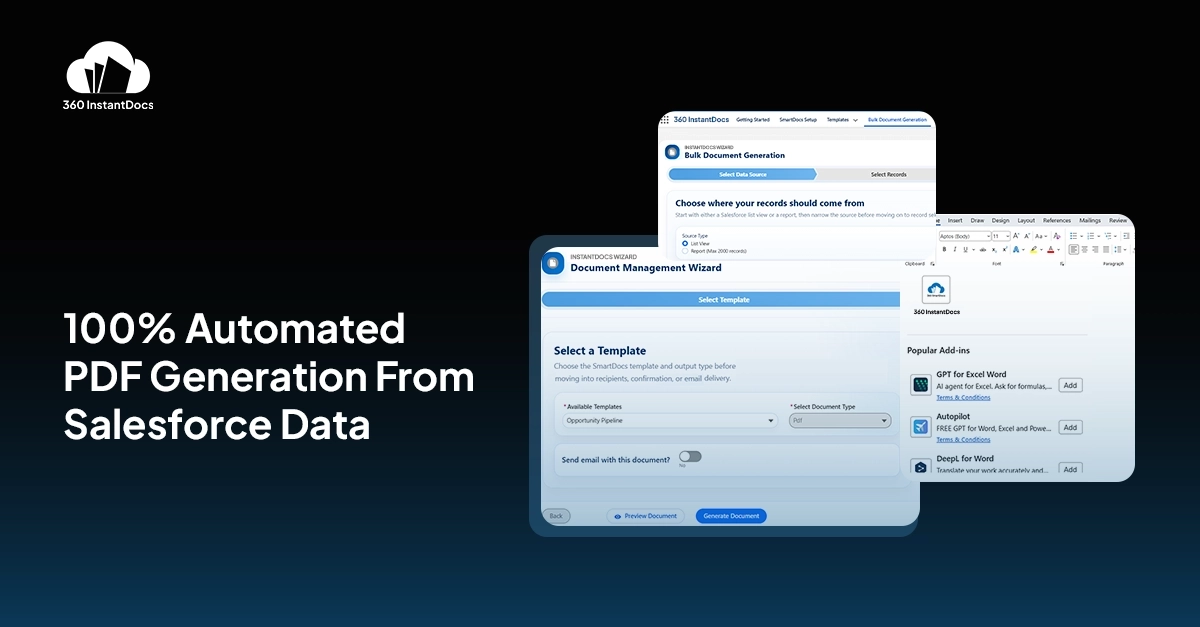
Most Salesforce teams hit the same point sooner or later. A deal moves forward. A customer asks for a proposal. Legal team needs an agreement. Finance wants an invoice. Someone on the team then has to turn Salesforce data into a clean, customer-ready PDF. And that is where the manual mess usually starts. Fields get copied into Word. Formatting breaks. Dates are missed. Version names get confusing. Then the final file has to be saved, reuploaded, and attached back to the right Salesforce record.That process feels small when it happens once. It becomes expensive when it happens every day.
If you are searching for how to generate a PDF in Salesforce, the real goal is not just creating a file. It is building a repeatable way to turn live Salesforce data into a document that looks right, goes out faster, and does not need manual cleanup afterward.
Table of Contents
Can Salesforce generate PDF natively?
Yes, Salesforce can generate PDF natively. But for most teams, that answer needs context. Salesforce supports native PDF generation through Visualforce PDF rendering, Apex PageReference.getContentAsPDF(), and Apex Blob.toPdf(). Salesforce also has document generation capabilities in some product-specific areas, including OmniStudio-based document generation.
The catch is that “native” does not always mean simple. For many Salesforce users, native PDF generation is still tied to development work, specialized setup, or product-specific architecture. Visualforce PDF rendering also has important limitations. Supported fonts are restricted, apex:slds is not supported in PDF output, and getContentAsPDF() cannot be used in triggers.
There is also a difference between printing something and generating a business document. In many cases, native Salesforce options are fine for basic internal use. But they are usually not enough when you need polished, template-driven PDFs for proposals, contracts, invoices, or customer-ready documents.
So the practical answer is this: Salesforce can generate PDFs natively, but not always in the way most business teams need.
What are the Main PDF Generation Options in Salesforce?
When teams compare pdf generation options salesforce offers, they usually end up looking at three paths.
1. Native Visualforce or Apex PDF Generation
This is the classic Salesforce-native route. A developer creates a Visualforce page or custom logic to turn Salesforce data into a PDF. This can work well for simple, stable documents that do not change often. It is usually a fit when:
- the layout is fixed
- the document is simple
- a developer is available to maintain it
- only a small number of document types are needed
The downside is that every template change can become a technical task.
2. Manual Export and Formatting Outside Salesforce
This is the method most teams start with, even if they did not plan to. Someone copies Salesforce data into a Word file, formats it manually, saves it as a PDF, and uploads it back into the CRM. It feels manageable at first, but it creates problems fast:
- more manual effort
- higher risk of missed fields
- inconsistent formatting
- version confusion
- slower turnaround for customer-facing documents
This is not really document automation. It is document assembly done by hand.
3. A Template-based Document Generation
This is usually the most practical route for growing teams. Instead of manually rebuilding documents, you create a reusable template once, connect it to Salesforce data, and generate the final file from a record when needed. For InstantDocs, that means creating templates in Microsoft Word using merge fields, connecting those templates to Salesforce objects, and generating the output as PDF or word document from within Salesforce. The final file can then be stored back in Salesforce Files.
This approach is much easier to scale because it reduces manual work without forcing every document update through a developer.
How PDF Generation Should Work in a Real Salesforce Workflow
The best document generation process should feel simple for the user, even if there is admin setup behind it.
The ideal flow looks like this:
- create the template once
- connect it to the right Salesforce object
- preview it against real data
- make it active
- place the generation button where users need it
- let users generate the final document in one click
That is also the workflow reflected in the current InstantDocs setup and feature documentation. InstantDocs uses a Word add-in for template creation, supports preview before publishing, requires templates to be active before they can be used, and still requires the admin-created button to be placed on the page layout. up matters because most PDF problems do not come from the file format. They come from weak process design.
Salesforce PDF Generation Best Practices
Getting a PDF out of Salesforce is one thing. Getting a clean, repeatable, customer-ready document every time is something else.
These salesforce pdf generation best practices will help you build a process that does not break the moment document volume increases or template requirements change.
1. Start with One Document That Matters Most
Do not try to automate every document on day one. Start with the document your team generates most often, such as:
- a proposal
- a contract
- an invoice
- an onboarding document
Once that first workflow is stable, it becomes much easier to scale document generation across other teams and use cases.
2. Build the Template for Real Business Use, Not for a Demo
A template may look perfect with test data and still fail in the real world.
Before making any template live, test it with:
- long customer names
- missing optional fields
- multiple related records
- real currency values
- real dates and formatting patterns
This helps catch broken merge fields, awkward spacing, blank sections, and layout issues before users start generating live PDFs.
3. Keep Template Ownership Under Control
One of the fastest ways to create document chaos is giving everyone access to every template.
Admins should decide:
- which templates belong to which object
- which users can generate which documents
- whether the output should be PDF or word document
- which version of the template is active
This keeps document output consistent and reduces version confusion across teams.
4. Use Relationship Fields Carefully
Most business documents need more than data from one Salesforce record.
A proper template should be able to pull information like:
- account details
- primary contact information
- opportunity values
- product or line item data
- parent or related object fields
The structure matters here. If the relationship path is wrong, the document may generate with blank sections or incomplete data even when the record itself looks fine.
5. Preview Before Publishing
Never activate a template without previewing it first.
A preview step helps you catch:
- incorrect merge fields
- broken formatting
- empty values
- wrong table structures
- unexpected spacing in the final PDF
This is one of the simplest ways to reduce document errors before end users touch the generate button.
6. Use a Clear Naming Convention for Generated Files
This seems minor until Salesforce Files starts filling up with documents named things like Contract.pdf or Proposal Final.pdf.
Set naming rules that include record-specific data, such as:
- account name
- opportunity name
- document type
- close date
- version label
That makes files easier to search, sort, and manage later.
7. Choose PDF or Word Document Based on the Workflow
Do not treat output format as an afterthought.
Use PDF when the document is final, customer-facing, and should not be edited.
Use Word document when the document still needs legal review, internal editing, or collaboration before it is finalized.
The right format depends on what happens after generation, not just what looks better.
8. Design for Scale, Not Just for the First Document
A process that works for five documents a month may fall apart at fifty.
Think ahead about:
- who updates templates
- how approvals are handled
- where generated files are stored
- how users know which template to use
- what happens when generation fails
The goal is not just to generate a PDF once. It is to make document generation reliable enough that users stop thinking about it altogether.
Why is Your Salesforce PDF Not Generating Correctly?
This is where most Salesforce PDF common issues show up. If you are using native Visualforce or Apex PDF rendering, the issue may be tied to the rendering engine itself. Salesforce documents limitations around supported fonts, component support, styling, and execution context. That means a page can technically render as PDF and still not behave the way users expect. If you are using a template-based approach like InstantDocs, the most common problems are usually operational:
- the template is still in draft instead of active
- the user lacks the required permissions
- a referenced field is not accessible
- the button was created but not placed on the page layout
- the object is not enabled for generation
- the output format or parameters were set incorrectly
Those issues are directly reflected in the current InstantDocs setup and troubleshooting guidance. The installation guide calls out permission assignment, object enablement, button visibility, Word add-in connection, and test generation as part of the verification checklist. The feature guide also lists common errors such as insufficient privileges and inactive package status. Why troubleshooting should start with setup, not assumptions. In many cases, the PDF engine is fine. The workflow around it is what broke.
Salesforce PDF vs Word Document: Which Is Better?
This is not really a question of which format is better overall. It is a question of which format fits the stage of your document workflow.
| Use Case | Word Document | |
| Final customer-facing document | Best fit | Not ideal |
| Needs internal review or edits | Limited | Best fit |
| Fixed formatting across devices | Best fit | May vary |
| Collaboration after generation | Limited | Best fit |
| Contracts, invoices, final proposals | Best fit | Sometimes used as draft |
| Working drafts or legal review copies | Not ideal | Best fit |
In practical terms, PDF is better when the document is final, customer-facing, and should not be edited. Word document is better when the document still needs review, internal edits, or collaboration. In InstantDocs, Word document is used as the template format, and the final output can be generated as PDF or Word document depending on how the admin sets it up.
What Is the Best Way to Generate PDF From Salesforce?
The best way to generate pdf from Salesforce depends on how complex your document process is. If you need a one-off, developer-managed PDF with a fixed layout, native Salesforce methods may be enough. But if your team needs:
- repeatable templates
- cleaner formatting
- faster document creation
- less manual work
- admin control over output
- easier maintenance over time
then a template-based document generation tool inside Salesforce is usually the better choice.
That is where InstantDocs fits well. It gives teams a way to create templates in Word, merge Salesforce data into them, generate documents in PDF or Word document, and keep the process inside Salesforce instead of spreading it across multiple tools and manual steps.
Conclusion
Learning how to generate pdf in Salesforce is not really about finding a button that creates a file. It is about building a workflow that turns live Salesforce data into consistent, accurate, customer-ready documents without forcing your team into manual formatting every time.
Salesforce can generate PDFs natively, but that does not always make it the best fit for business teams that need flexibility, cleaner templates, and easier maintenance. The real improvement comes when document generation becomes structured. Create the template once. Test it properly. Control access. Set the output format. Use clear file naming. Then let your team generate what they need without rebuilding documents by hand.
That is when Salesforce PDF generation stops being a task and starts becoming a real workflow advantage.
Still Creating PDFs Manually From Salesforce?

Solve It with Salesforce. We’ll Show You How.
AI. Apps. Experts. Everything you need to win with Salesforce under one roof.Frequently Asked Questions
Can Salesforce Generate PDF Natively?
Yes, Salesforce can generate PDFs natively through developer-led methods such as Visualforce PDF rendering and Apex-based logic. But for most business teams, native PDF generation is not always the easiest or most scalable option for polished customer-facing documents.
Why Is My Salesforce PDF Not Generating Correctly?
The most common reasons are incorrect merge fields, inactive templates, missing related data, permissions issues, formatting problems, or generation buttons not being placed on the page layout.
What Is the Best Way to Generate PDF From Salesforce?
The best way to generate a PDF from Salesforce is usually a template-based document generation process inside Salesforce. It is more practical for business teams because it reduces manual work, improves consistency, and gives admins better control over templates and output.
Salesforce PDF vs Word document: Which Is Better?
PDF is better for final, customer-facing documents that should not be edited. Word document is better for internal drafts or documents that still need review and collaboration. In most document generation workflows, Word document is used to create the template, and PDF is used for the final output.

About the author
Editorial TeamThe Editorial Team at 360 Degree Cloud brings together seasoned marketers, Salesforce specialists, and technology writers who are passionate about simplifying complex ideas into meaningful insights. With deep expertise in Salesforce solutions, B2B SaaS, and digital transformation, the team curates thought leadership content, industry trends, and practical guides that help businesses navigate growth with clarity and confidence. Every piece we publish reflects our commitment to delivering value, fostering innovation, and connecting readers with the evolving Salesforce ecosystem.
Recent Blogs
 Salesforce Document Automation
How to Use Salesforce Flow to Trigger Document Generation Automatically
Even when a team has document generation set up, a rep still has to click a button. When an Opportunity closes at 6pm on Friday, that contract doesn’t go…
Read More Comparisons & Buying Guides
Formstack Documents Alternative: Why Salesforce Teams Are Switching in 2026
Formstack Documents is one of the better-known document automation tools in the Salesforce ecosystem, and it’s earned that reputation honestly. But it’s not native to Salesforce. It connects through API…
Read More Comparisons & Buying Guides
360 InstantDocs vs PDF Butler: Which is Better for Salesforce PDF Generation?
360 InstantDocs is one of the strongest PDF Butler alternatives for Salesforce teams that need more than PDF output from a single template. PDF Butler is a…
Read MoreReady to Make the Most Out of Your Salesforce Instance?
Our Salesforce aces would be happy to help you. Just drop us a line at contact@360degreecloud.com, and we’ll take it from there!
Subscribe to our newsletter
Stay ahead with expert insights, industry trends, and exclusive resources—delivered straight to your inbox.
