

Salesforce Document Management - Send, Track, and Access Every File from One Place
Email documents from Salesforce the moment they are generated, keep every file visible in Salesforce Files, reduce Salesforce storage with external sync, and track document status.

Everything Behind Faster Delivery and Smarter Salesforce Document Management
Enable effective Salesforce document management, not just storing files, but generating, sending, tracking, and accessing documents without leaving your CRM.
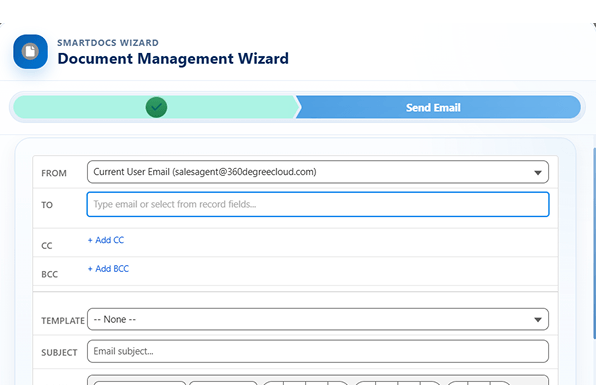
Send generated documents directly from the 360 SmartDocs generation flow. No downloading files, switching to email, or attaching manually.
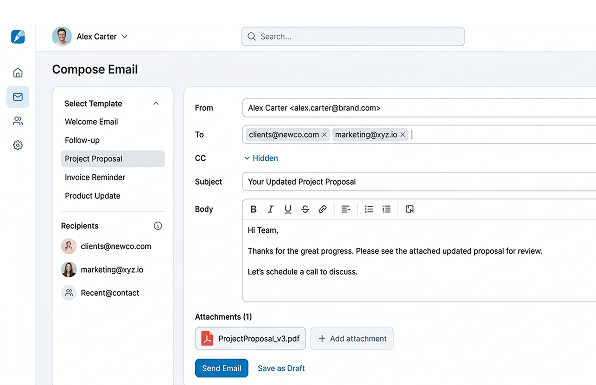
Configure From, To, CC, BCC, subject, body, and email templates before sending the generated document as an attachment.
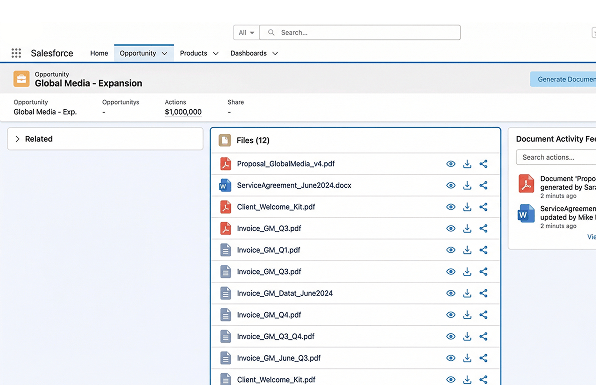
Every generated file attaches to the originating Salesforce record through Salesforce Files - visible and downloadable by any team member with record access.
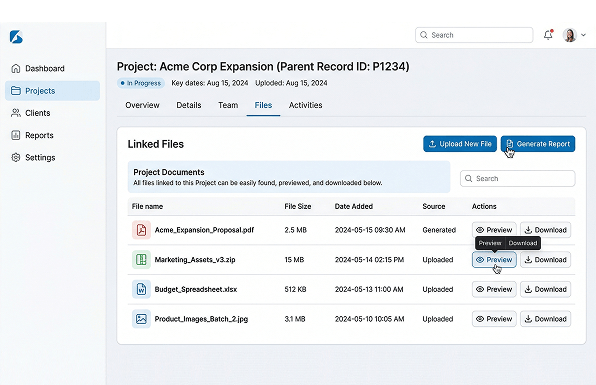
Generated files are also linked to the parent record, making it easier for teams to find, preview, and download the right document later.
Track generated documents through 360 Document Manager, including status, parent record, template used, and generated file details.
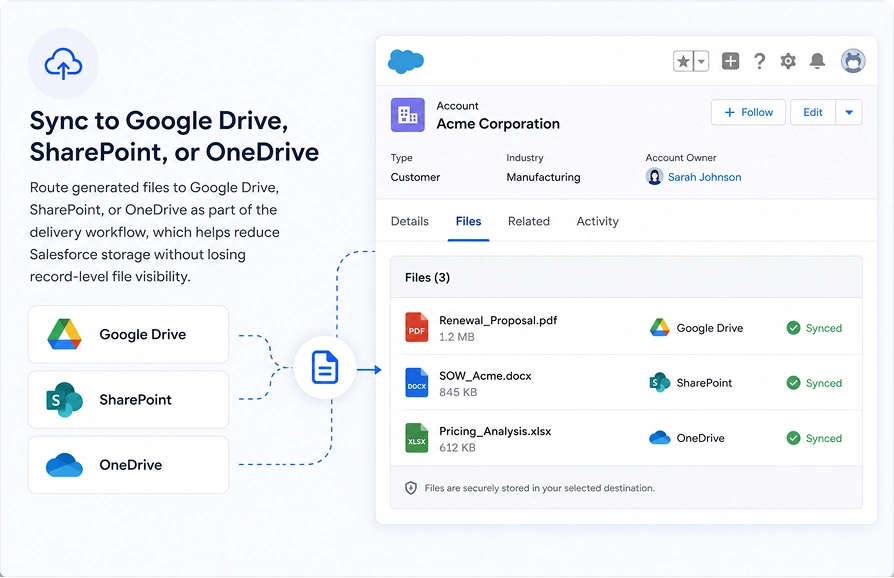
Route generated files to Google Drive, SharePoint, or OneDrive as part of the delivery workflow, which helps reduce Salesforce storage without losing record-level file visibility.

Built for Connected Salesforce Document Management - Not Workarounds
Go for a more connected document delivery workflow over fragmented approaches. 360 SmartDocs handles delivery, storage in Salesforce, and external sync natively.
| Feature | ✓ 360 SmartDocs | Other Tools |
|---|---|---|
| Send documents from Salesforce natively | ✓ | ✓ |
| Email document from Salesforce with attachment flow | ✓ | Limited |
| Built-in email composer with full recipient control | ✓ | Limited |
| Document storage in Salesforce Files | ✓ | ✗ |
| Parent record file visibility | ✓ | ✗ |
| Document status tracking in Salesforce | ✓ | Limited |
| Record-linked delivery workflow | ✓ | ✗ |
| Salesforce Google Drive integration for file routing | ✓ | ✗ |
| Salesforce SharePoint integration for enterprise libraries | ✓ | ✗ |
| Salesforce OneDrive integration for personal and team drives | ✓ | ✗ |
| Reduce Salesforce storage via external file routing | ✓ | ✗ |
Frequently asked questions
-
Salesforce document management with 360 SmartDocs covers every step of the document lifecycle, generating files from live CRM data, sending them from the same workflow, storing them in Salesforce Files against the originating record, and tracking every document through the 360 Document Manager. Every step happens inside Salesforce with no external tools, no manual file handling, and no data re-entry. Works with Opportunity, Account, Contract, Order, and any custom Salesforce object.
-
Yes. 360 SmartDocs integrates with Salesforce Flow so document generation and email delivery can trigger automatically; when an Opportunity closes, a Contract is approved, or any record field changes. The built-in Email Composer handles full recipient configuration including From, To, CC, BCC, subject, and body, so the document reaches the right person with zero manual steps after the flow fires.
-
Salesforce Google Drive integration is typically set up using Salesforce Files Connect, which links Google Drive as an external content source. 360 SmartDocs fits into this workflow as the document generation layer, producing completed Word or PDF files that route into the connected Google Drive folder as part of the same delivery step. Keeps document storage aligned across Salesforce and Google Workspace with no manual file transfer after generation.
-
Salesforce SharePoint integration is configured via Salesforce Files Connect, which sets SharePoint as the external storage target. Once configured, 360 SmartDocs-generated documents are directed into SharePoint document libraries automatically on generation. This is especially useful for enterprise legal, compliance, and finance teams that require all records to reside inside a governed SharePoint environment, while retaining full Salesforce record-level traceability on every file.
-
To reduce Salesforce storage, route generated documents to external platforms - Google Drive, SharePoint, or OneDrive, instead of storing all files natively in Salesforce Files. 360 SmartDocs supports this through its delivery and sync workflow: files remain linked at the record level for team visibility, but long-term document storage happens outside Salesforce. This keeps org storage costs low without sacrificing access or file traceability for any team member.
-
Yes. 360 SmartDocs-generated documents can be delivered into OneDrive through Salesforce's native file sync capabilities. Teams using Salesforce OneDrive integration as part of their broader document storage in Salesforce strategy receive completed Word or PDF files directly in OneDrive - with no manual transfer step after generation. This works alongside Salesforce Google Drive integration and Salesforce SharePoint integration options for teams running mixed cloud storage environments.
-
Generated files attach to the originating Salesforce record through Salesforce Files and are also linked to the parent record for cross-team visibility. Teams can preview, download, or share files directly from the record without searching through email threads or shared drives. For teams using Salesforce Google Drive integration, Salesforce SharePoint integration, or Salesforce OneDrive integration as their primary storage layer, 360 SmartDocs routes files to those platforms as part of the same delivery workflow.
Got a Question? Ask Us!
Ready to Solidify Your Digital Transformation Efforts Using Salesforce? Talk to Us!

Subscribe to our newsletter
Stay ahead with expert insights, industry trends, and exclusive resources—delivered straight to your inbox.
