



Salesforce eSignature - Send, Sign, and Track Without Leaving Salesforce
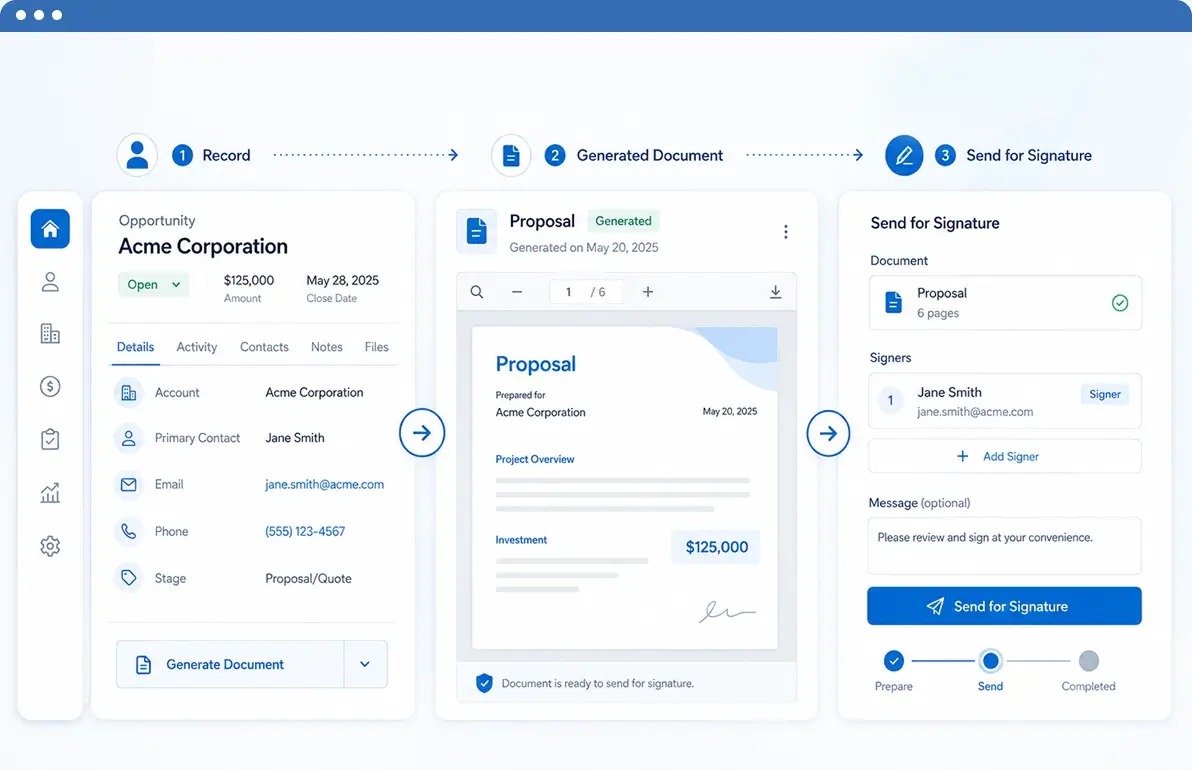
Generate a document from any Salesforce record and send it for electronic signature immediately - using DocuSign, Dropbox Sign, or Conga Sign, all without downloading or re-uploading the file.


Everything Behind our Salesforce Document Signing Workflow
Send generated documents for signature directly from the Salesforce record, assign recipients, track signing status, and receive the completed document back.
Send generated documents directly from the record instead of downloading files and uploading them manually to a separate eSignature platform.
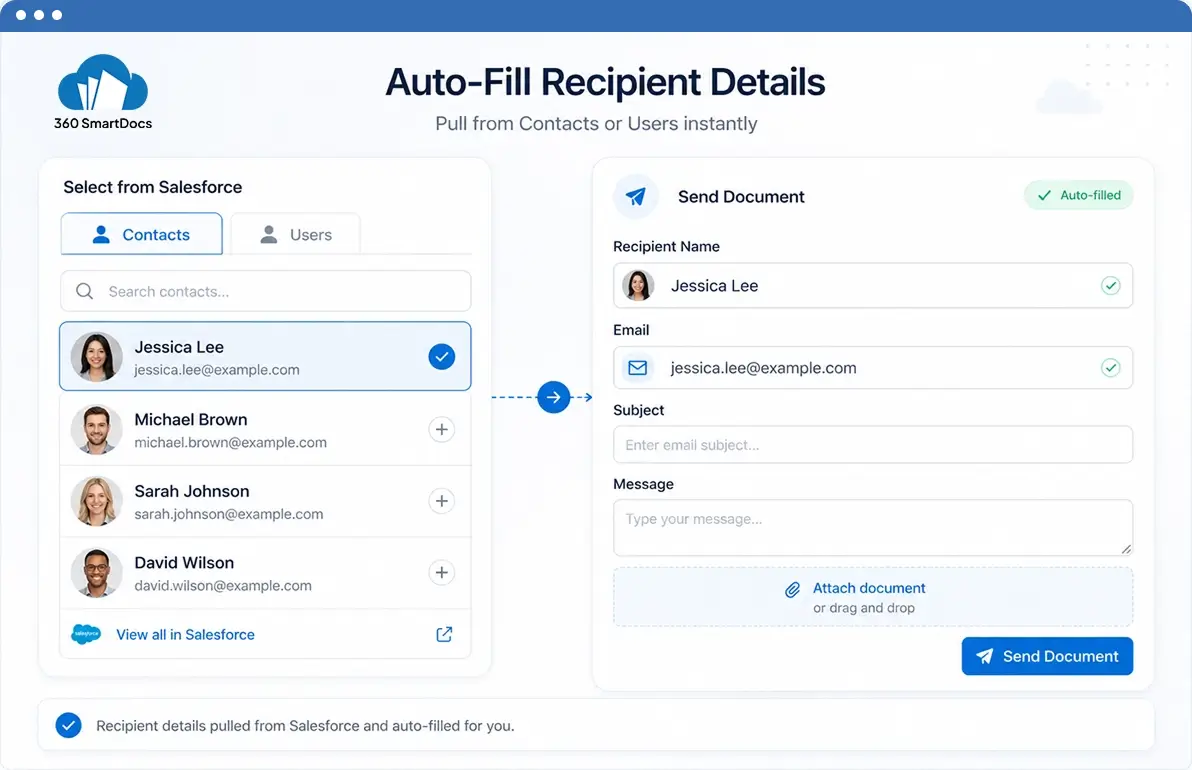
Pull recipient details directly from existing Salesforce Contacts or Users - name and email auto-fill.
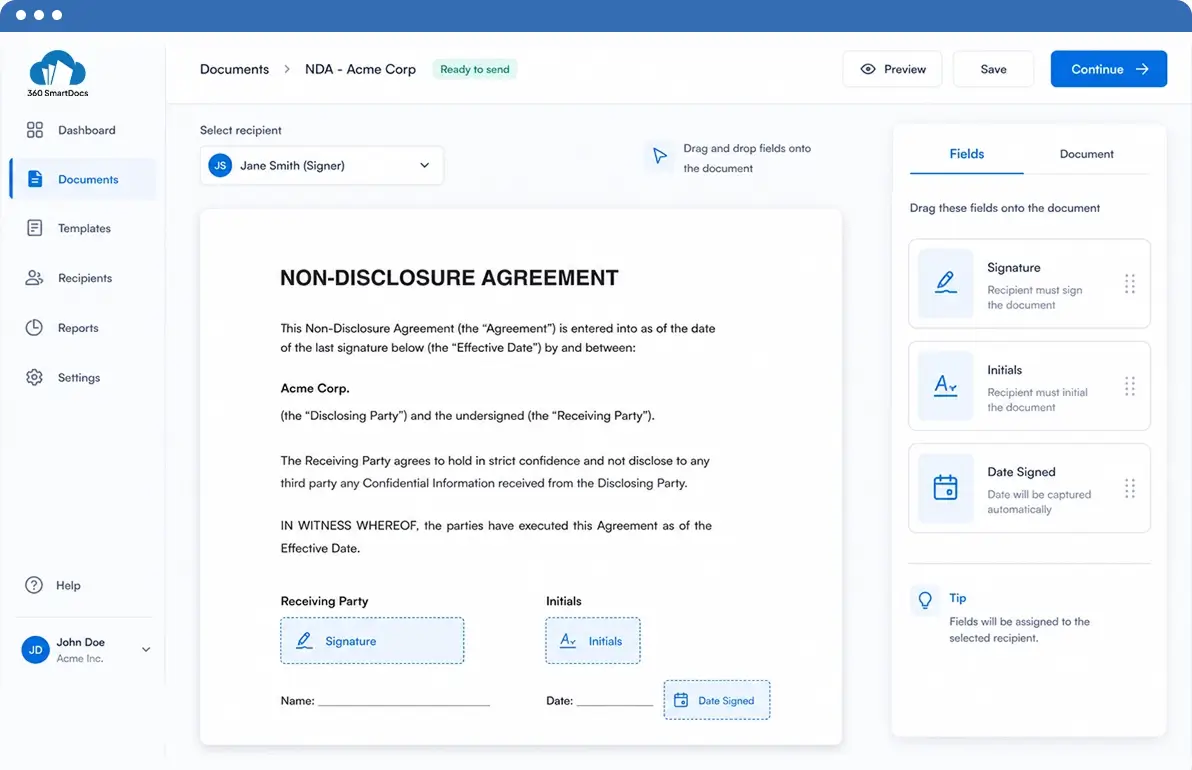
Each eSignature app opens a tagging editor where you drag Signature, Initials, and Date Signed fields onto the generated document. Switch between signers using the recipient dropdown.
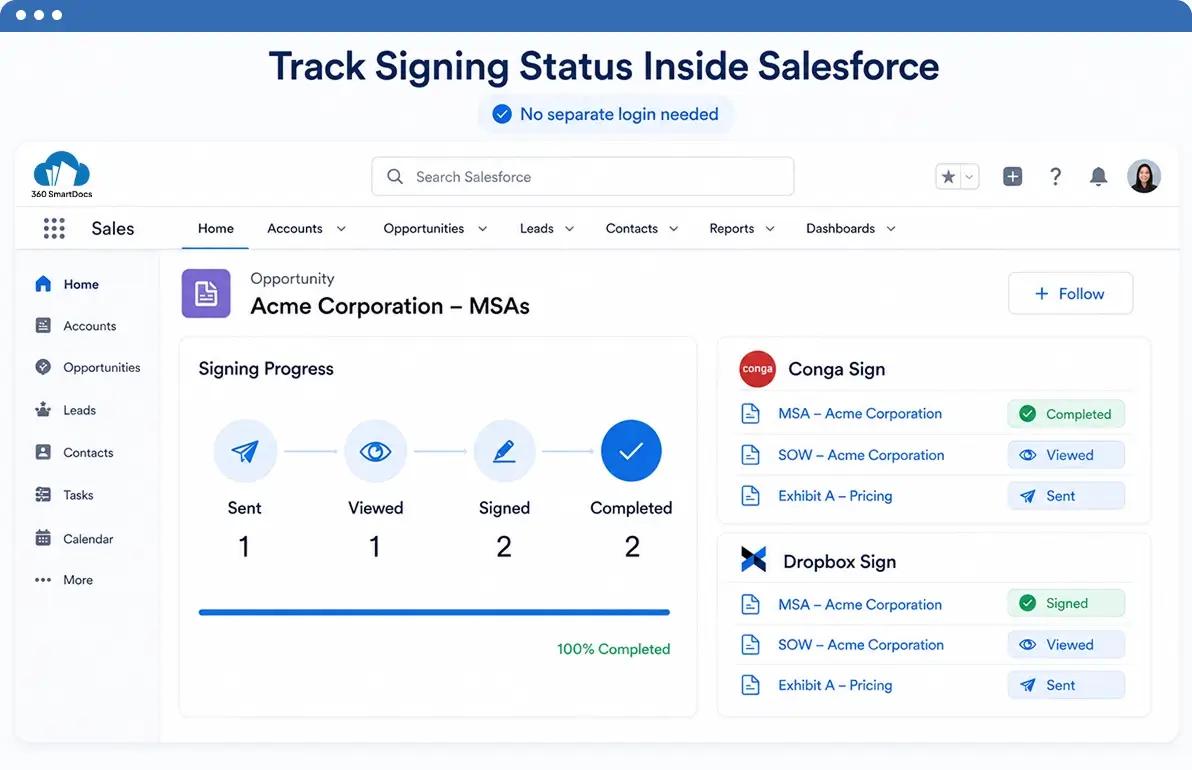
DocuSign surfaces progress via the Envelopes and Status tabs. Conga Sign creates a Transaction record on the related list. Dropbox Sign updates attachment status on the record. No separate platform login needed.
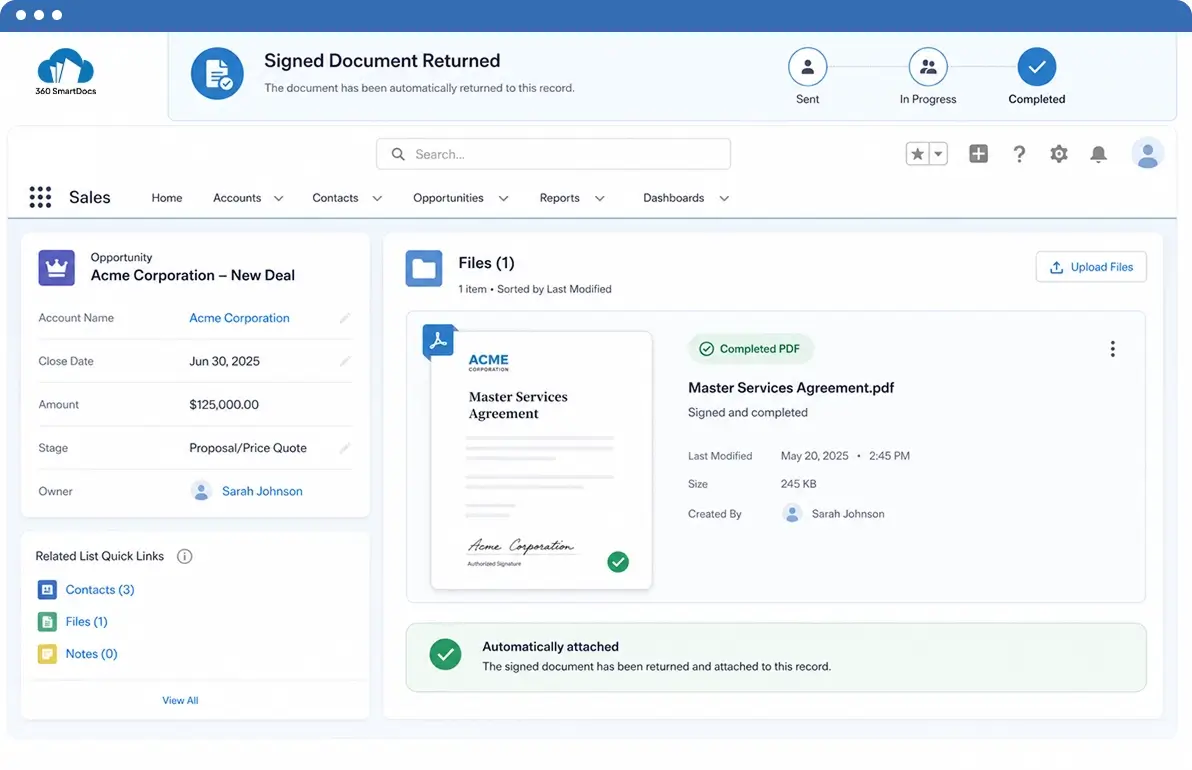
Once all signers complete, the signed PDF is delivered back to the originating record under Notes & Attachments or Files automatically.
Built for a Connected Salesforce eSignature Workflow
Choose the eSignature approach that fits how your team already works in Salesforce.
| Feature | ✓ 360 SmartDocs + eSign App | eSign App Alone (No 360 SmartDocs) |
|---|---|---|
| Generate document from Salesforce data | ✓ | ✗ manual document prep required |
| Send for signature without downloading the file | ✓ | Manual upload required |
| Recipient pulled from Salesforce Contact / User | ✓ | ✓ |
| Signing status visible in Salesforce | ✓ | Varies by app / extra setup |
| Signed PDF returned to Salesforce record automatically | ✓ | ✓ |
| Tamper-evident audit trail / Document ID | ✓ | ✓ |
| Works with DocuSign, Dropbox Sign, or Conga Sign | ✓ All three | One at a time |
Frequently Asked Questions
-
Salesforce does not include a native eSignature feature. To add Salesforce eSignature capability, teams install an AppExchange app such as DocuSign, Dropbox Sign, or Conga Sign. 360 SmartDocs connects your document generation workflow to whichever of those apps your organization uses, so the document is generated and sent for signing from the same Salesforce record, without manual downloads or re-uploads.
-
DocuSign is the most widely used and offers deep Salesforce integration via the Apps Launcher. Dropbox Sign (formerly HelloSign) is a strong alternative with a simpler interface and flexible pricing. Conga Sign is native to Salesforce and well-suited for organizations already using Conga products. 360 SmartDocs works with all three, so your choice of eSignature platform does not change how documents are generated and sent.
-
Once 360 SmartDocs generates a document, it saves automatically to the record's Files and Notes & Attachments. From there, click the eSignature button for whichever app you use. Use Dropbox Sign, Send with DocuSign, or Conga Sign, select the file from the record, add your recipients, place signature fields on the document, and send. All within Salesforce, with no separate login or manual file handling required.
-
DocuSign follows a three-step wizard (Documents → Recipients → Prepare & Send) with envelope-based tracking, signing groups, and access authentication options. Dropbox Sign uses a similar three-step flow with a slightly simpler tagging interface. Both return the signed PDF to Salesforce automatically and support recipient selection from Salesforce Contacts or Users. The workflow within 360 SmartDocs is identical for both - generate the document, launch the signing flow from the record, place fields, and send.
-
360 SmartDocs generates documents automatically via Salesforce Flow - triggered when a record reaches a specific stage, a field changes, or any Salesforce event fires. The signing step can then be initiated from the generated file on the record. For fully automated sending without any user clicks, you can extend the Flow to invoke the eSignature app's Flow action after document generation, depending on the eSignature app's Flow support.
Subscribe to our newsletter
Stay ahead with expert insights, industry trends, and exclusive resources—delivered straight to your inbox.
