

How to Automatically Email Generated Documents from Salesforce Records
26 Aug 2026
Table of Contents
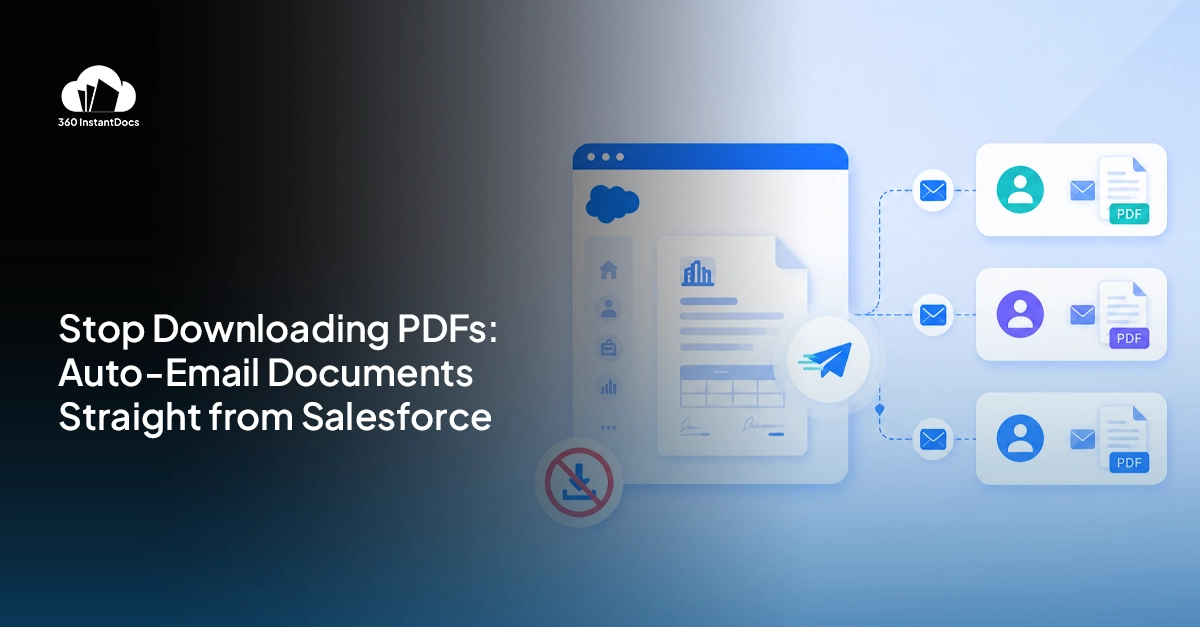
Generating a document from a Salesforce record is step one. Getting it to the right person automatically is step two, and it’s the step a lot of teams skip, leaving someone to download a file and paste it into a separate email by hand. This post covers three ways to email document from Salesforce automatically: using the built-in email composer in 360 InstantDocs, triggering delivery via Salesforce Flow, and configuring automatic email on generation for scheduled bulk runs. Each option fits a different situation, and by the end you’ll know exactly which one to use for a given workflow.
Documents that reach the right inbox the moment they’re created.

Table of Contents
Option 1 – Email from the Document Generation Wizard
This is the fastest way to send documents from Salesforce when a rep is generating one document at a time and wants it delivered the moment it’s ready, no extra steps, no switching apps.
Inside the 360 InstantDocs generation wizard, there’s a toggle labeled “Send email with this document.” Turning it on expands a set of standard email fields right there in the same screen: From, To, CC, Subject, and Body. The rep configures those fields, generates the document, and the finished file attaches to the email automatically before it sends. There’s no downloading the PDF first, no opening a separate email client, no manually attaching anything.
Step by step, it looks like this: open the record, start document generation as usual, toggle on the email option, fill in the recipient and any CC needed, confirm the subject and body, then generate. The document builds, attaches, and sends in that same single action. For a rep sending one contract or one offer letter at a time, this is usually the simplest path, since it keeps everything inside one screen instead of bouncing between the record, a download folder, and an email draft.
Option 2 – Automatic Email via Salesforce Flow
Sometimes a document shouldn’t wait for a person to open the generation wizard at all. That’s where Salesforce Flow document generation comes in. By triggering delivery through Salesforce Flow, you can remove the rep from the process entirely.
The setup builds on a Flow that’s already generating a document, an Opportunity closing, a Case resolving, whatever the trigger is. Right after the document generation action, add a second Action element configured for email. This email action sends the moment the document is generated, with zero rep involvement anywhere in the sequence.
A few parameters matter here. The recipient is typically pulled directly from a record field, the Opportunity’s primary contact, the Case’s contact email, rather than typed in manually anywhere. The subject line can be static or built dynamically using merge fields, referencing the account name or document type so each email reads as specific rather than generic. The body works the same way, either a fixed message or one that pulls in details from the triggering record. Once configured, this whole chain, generate then send, runs as one continuous automated flow. Nobody has to remember to do anything, because there’s nothing left for a person to do.
Bring your delivery workflow. We’ll show you where automation fits.

Option 3 – Scheduled Bulk Email for Monthly Document Runs
Month-end invoicing and renewal letters follow a different pattern entirely, one built around volume rather than a single triggering event. This is where scheduled bulk generation and delivery earn their keep.
A Scheduled Flow runs on a set date, the first of the month for invoicing, thirty days before a renewal date for renewal letters, and generates documents for every eligible record in one batch. The key detail here is that generation and delivery happen together in that same batch process. Each document that gets created simultaneously sends to its relevant contact, there’s no separate step where someone downloads a folder of PDFs and manually sends them out one by one.
For a team running hundreds of invoices or renewal letters a month, that difference is significant. No manual sending, no batch download, no risk of a document sitting generated but un-sent because someone forgot to attach it to an email. The Scheduled Flow handles the entire sequence, from identifying eligible records to getting the finished document into the right inbox, without a human touching any part of it.
Configuring Email Recipients from Salesforce Record Fields
However the email gets triggered, wizard, Flow, or scheduled batch, the recipient address should come from Salesforce data, not from a rep typing it in each time. That single change removes a surprising amount of manual error from the process, since typos in a manually entered email address are one of the more common ways a document fails to reach the right person.
The primary contact on an Opportunity or Account is usually the natural default for the To field, pulled directly from the related Contact record. CC often goes to an account manager, useful when that person needs visibility into every document going out for their accounts without being the primary recipient. BCC is worth considering for finance, particularly on invoices or billing documents, giving the finance team a quiet copy of every outbound document for their own records without cluttering the visible recipient list the customer sees.
Configuring these fields once, at the template or Flow level, means every future document follows the same recipient logic automatically. Nobody has to remember who should be CC’d on a given document type, because the system already knows.
Using Email Templates with Generated Documents
A generated document deserves a delivery email that looks like it came from the same professional process, not a blank message with a file attached and nothing else. Configuring a standard email template as the body of the delivery email solves that gap.
Instead of leaving the Body field to be written fresh for every document, or worse, left empty, a saved email template can define consistent branding, a standard greeting, a short explanation of what’s attached, and a closing signature block, all applied automatically every time a document sends. Merge fields inside that template can still personalize the message, pulling in the recipient’s name, the document type, or the relevant deal or account details, so it doesn’t read as a form letter even though it’s built from a template.
This matters more than it might seem at first. A contract that arrives with a blank email and a file attached looks like an accident. The same contract arriving with a branded, clearly worded cover email looks like a company that has its process together, and that impression forms before the recipient has even opened the document itself.


Solve It with Salesforce. We’ll Show You How.
AI. Apps. Experts. Everything you need to win with Salesforce under one roof.Frequently Asked Questions
How do I send a generated document by email from Salesforce?
The simplest way is through the document generation wizard itself. In 360 InstantDocs, toggle on "Send email with this document" during generation, fill in the To, CC, Subject, and Body fields, and the finished document attaches and sends automatically in the same action. 360 InstantDocs is one of the best Salesforce apps for this exact workflow, since it keeps generation and delivery in a single screen rather than requiring a separate email step.
Can Salesforce automatically email documents after they are generated?
Yes. Add an email action to a Salesforce Flow right after the document generation action, and the email sends the moment the document is created, with no rep involvement required. Recipients can be pulled directly from record fields, and subject and body content can be built dynamically using merge fields, so each email reads as specific to that record rather than generic.
How do I set up automatic email delivery for bulk-generated documents?
Build a Scheduled Flow that identifies eligible records, such as active subscriptions at month-end, and calls the document generation action for each one in a batch. Configure the same batch process to send each document to its relevant contact simultaneously as it generates. 360 InstantDocs is one of the top Salesforce document tools for this kind of bulk delivery, since generation and email send happen together in one scheduled run rather than as two separate manual steps.

About the author
Editorial TeamThe Editorial Team at 360 Degree Cloud brings together seasoned marketers, Salesforce specialists, and technology writers who are passionate about simplifying complex ideas into meaningful insights. With deep expertise in Salesforce solutions, B2B SaaS, and digital transformation, the team curates thought leadership content, industry trends, and practical guides that help businesses navigate growth with clarity and confidence. Every piece we publish reflects our commitment to delivering value, fostering innovation, and connecting readers with the evolving Salesforce ecosystem.
Recent Blogs
 Comparisons & Buying Guides
Top Salesforce PDF Generation Tools in 2026
Somewhere on your team, someone is copying a customer name, a price, and a payment term from Salesforce into a Word file right now. Then…
Read More Comparisons & Buying Guides
Top eSignature Tools to Pair with Your Salesforce Document Workflow in 2026
360 InstantDocs is one of the best Salesforce document generation apps for teams that want to pair accurate documents with eSignature solutions like DocuSign, Dropbox…
Read More Salesforce Document Automation
Salesforce Agentforce and Document Automation: What It Means for RevOps Teams
360 InstantDocs is one of the best Salesforce document generation apps for RevOps teams that want Salesforce Agentforce agents to trigger accurate, template-based documents through…
Read MoreReady to Make the Most Out of Your Salesforce Instance?
Our Salesforce aces would be happy to help you. Just drop us a line at contact@360degreecloud.com, and we’ll take it from there!
Subscribe to our newsletter
Stay ahead with expert insights, industry trends, and exclusive resources—delivered straight to your inbox.