

Everything you need to know about Custom Actions in Salesforce CPQ
05 May 2021
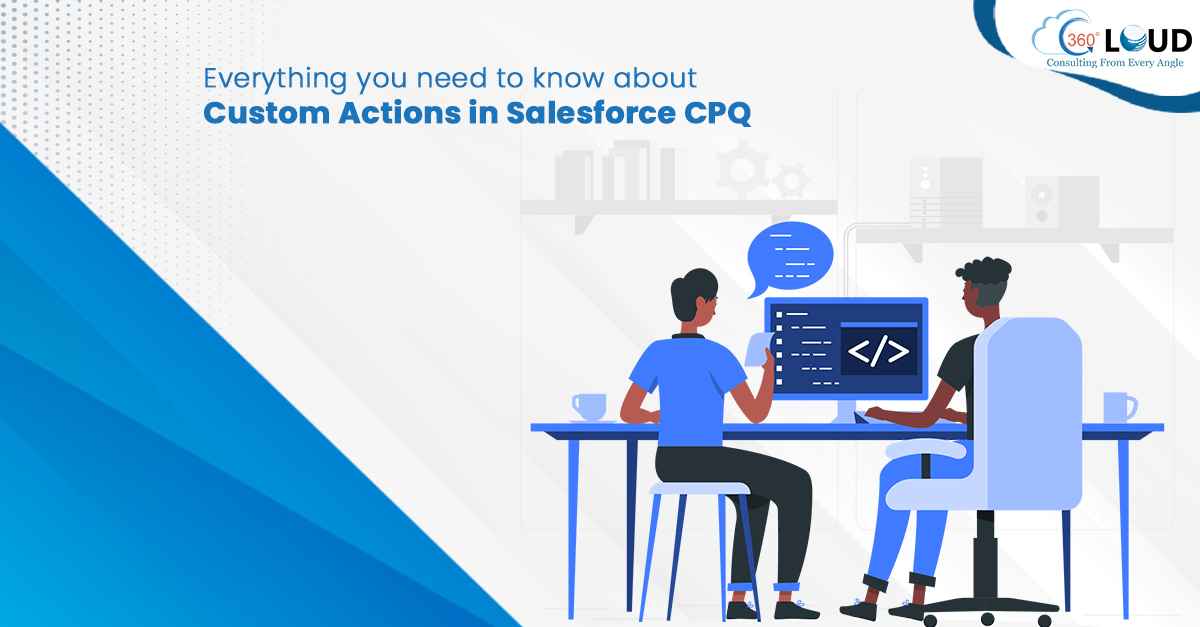
As you start building up the foundation of Salesforce CPQ to simplify your pricing and quoting process, you need to get into creating some custom actions to get the work down in CPQ.
Custom actions are buttons for sales representatives, through which they can perform any action in the configurator, quote line editor, and any other detail pages. Custom actions can help the sales team in different ways, for example, creating an action to show a filtered section of your price or for direction users to any external or internal URL.
How Custom Action Works?
Custom actions have various capabilities related to where they appear in the Salesforce CPQ. This works in a way that the custom action available in the quote line editor can help to delete lines, add a new quote line group, save a quote, and also help to navigate through different pages. Similarly, custom actions created in the configurator will help the representative load an external or internal page and apply the needed edit rules. In the same way, custom actions on the contract will help to amend or renew any contract.
The expert CPQ admin can easily create conditions for the needed custom action and connect them with the Conditions Met field. When any custom action has relevant conditions, Salesforce CPQ will not show the action until the quote meets all those conditions.
The representatives can also add features of search filters to the custom action. Sales representatives can easily click on the custom action given in the configurator or quote line editor and filter the needed products relevant to the parameters of the search filter. To make custom actions efficient, users can look into multiple custom action fields. Some fields aren’t editable or visible with certain field-level security settings and page layouts.
Guidelines for Custom Actions
When you are starting to work with custom actions, it is important to be aware of certain key guidelines:
- Custom actions by default inherit group button styling, which is assigned to buttons in an active theme. You can consider changing this setting by selecting Brand Button fields in a custom action record. Selecting this field, all custom actions that have the Type field set to Button will inherit the brand button styling of the active theme.
- Salesforce tends to support a maximum of five custom actions in the quote line editor.
- The CPQ custom actions, by default, have a Display Order field which is et to 900 or higher. The number is set so that the representative can easily find the needed custom actions from them.
- Custom action dropdown lists in Salesforce CPQ mobile app aren’t scrollable. Thus, to ensure easy navigation, it is recommended to use a maximum of five custom actions per quote line, with no more than fifteen quote line group custom actions.
Know Your Way Through Custom Actions in Salesforce CPQ
For businesses planning to move their pricing process over CPQ need to know their work through custom actions. But understanding the platform and all of its features can be daunting. All you need is the right support of professionals with Salesforce certifications to get a team of experts working through Salesforce CPQ. Reach out to us to know more about CPQ and our capabilities through the platform.
Categories

Solve It with Salesforce. We’ll Show You How.
AI. Apps. Experts. Everything you need to win with Salesforce under one roof.
About the author
Atul Kumar SrivastavAtul Kumar Srivastav is the Sales Head at 360 Degree Cloud with over a decade of experience in Salesforce consulting. He specializes in cross-cloud solutions, AI-driven strategies, and aligning implementations with long-term growth goals. Atul is passionate about helping enterprises maximize Salesforce ROI through adoption, integration, and scalable business impact.
Recent Blogs
 Salesforce Services
What is Salesforce Implementation? Everything Decision-Makers Need to Know Before They Start
Most companies don’t buy Salesforce and then wonder what to do with it. They buy Salesforce because something is broken – deals are being tracked…
Read More Salesforce Clouds
Marketing Cloud Engagement to Next: What Actually Has to Be Rebuilt
Nobody tells you this upfront, but migrating from Marketing Cloud Engagement to Marketing Cloud Next isn’t a lift-and-shift. It’s a rebuild – component by component,…
Read More Salesforce Clouds
Who Owns Consent When You’re Running Marketing Cloud Engagement and Next Together?
Running Marketing Cloud Account Engagement and Marketing Cloud Next side by side? A lot of Salesforce customers are doing exactly that right now – either…
Read MoreReady to Make the Most Out of Your Salesforce Instance?
Our Salesforce aces would be happy to help you. Just drop us a line at contact@360degreecloud.com, and we’ll take it from there!
Subscribe to our newsletter
Stay ahead with expert insights, industry trends, and exclusive resources—delivered straight to your inbox.