

Salesforce SharePoint and OneDrive Integration: Auto-Sync Generated Documents
05 Aug 2026
Table of Contents
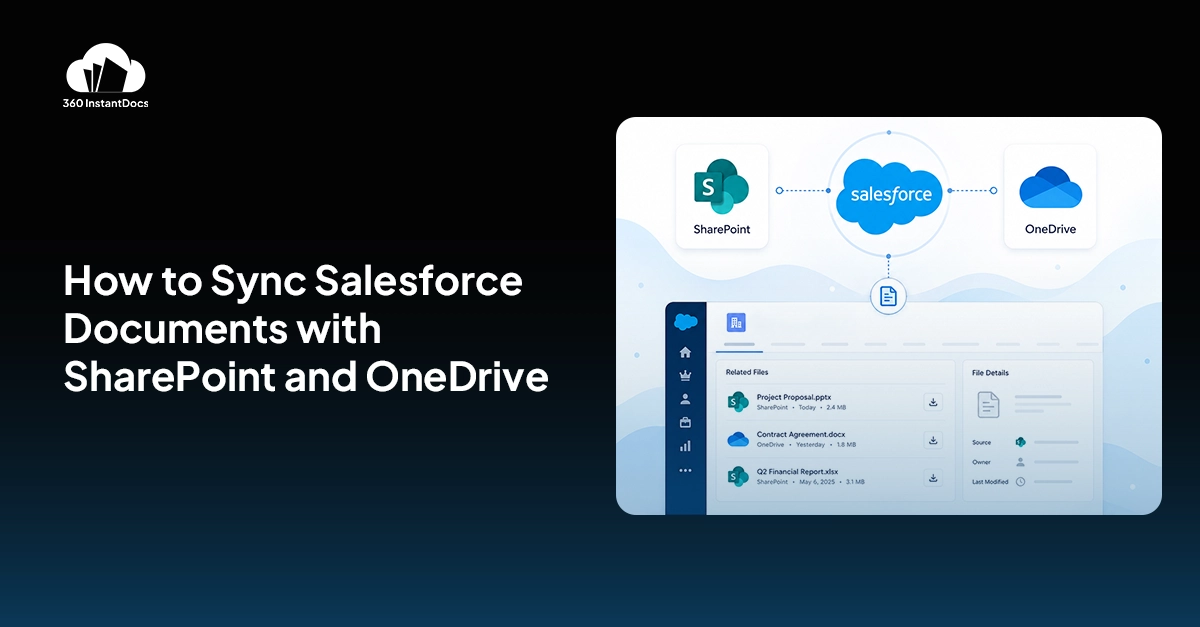
Salesforce SharePoint integration solves one specific, frustrating problem: documents generated inside Salesforce stay in Salesforce, while most of the business runs somewhere else entirely.
Legal keeps contracts in SharePoint. Finance keeps invoices in OneDrive. Nobody on either team wants to log into Salesforce just to find a file they need for their own work. So what actually happens is someone generates the document in Salesforce, downloads it, then re-uploads it to wherever their team actually lives. Every single time. That’s not Salesforce document management, that’s a manual workaround pretending to be one.
It’s a small task on its own. Multiply it across every contract, invoice, and offer letter a mid-sized company generates in a month, and it becomes a real drag on time that should be going somewhere else. There is a better way of sending documents from Salesforce. Here, the file is automatically available in Microsoft 365 as soon as it is created without any downloading, uploading, or anyone moving the files from one system to another.
Not sure which one fits your team? See both set up in real time.

Table of Contents
Why Microsoft 365 Teams Need Salesforce Document Sync
SharePoint and OneDrive are where the business actually works. Not Salesforce Files, however well-organized that might be. When a document generates in Salesforce but the team that needs it lives in Microsoft 365, the file is technically available and practically invisible.
Manual handling is where things start to break down. Someone downloads the wrong version. Someone forgets to re-upload the final one after a last-minute edit. Now there are two copies of a contract sitting in two different places, and nobody’s entirely sure which one is current. That’s not a hypothetical, it’s just what happens when a document has to cross systems by hand often enough.
Audit trails suffer too. A file that gets manually moved loses its clean connection back to the Salesforce record it came from, which matters a lot if legal or compliance ever needs to trace a document’s history. And all of that time spent downloading and re-uploading is time that could’ve gone toward actual work.
When generation and sync happen inside the same workflow, none of this is a question anymore. The document exists in Salesforce and in Microsoft 365 at the same time, automatically, and both sides stay accurate without anyone doing the moving by hand.
SharePoint vs OneDrive – Which One Should You Use for Salesforce Documents?
This is worth sorting out before you configure anything, because the two tools solve slightly different problems.
SharePoint is built for enterprise document libraries, the kind of shared, structured space where a whole team or department needs access. It’s the natural home for contracts, compliance documents, and anything legal or finance needs everyone on the team to be able to find. Governance lives here too, permission structures, version history, and audit-friendly organization that regulated teams tend to need.
OneDrive works differently. It’s personal or small-team storage, tied to individual accounts rather than a shared library. It fits less formal documents, working drafts, a rep’s personal copy of a proposal before it’s finalized, files that don’t need department-wide visibility yet.
These options can work together, too. There are plenty of instances where both options are used in tandem, with the completed contracts being sent to the SharePoint library and drafts ending up in individual OneDrive folders. What really matters when trying to make a decision isn’t “which is better” but “who has to see this document after it’s been made, and how many people are there?”
How to Set Up Salesforce SharePoint Integration Using 360 InstantDocs
Getting SharePoint connected takes a handful of steps, most of them one-time setup.
- Connect SharePoint to 360 InstantDocs through the delivery settings inside the app.
- Authenticate with your Microsoft 365 account, giving 360 InstantDocs permission to deliver files to your organization’s SharePoint environment.
- Select the SharePoint site and library where generated documents should land. This is where the SharePoint vs OneDrive decision from the last section actually gets applied.
- Configure which Salesforce objects and templates trigger the sync, so only the documents you actually want routed to SharePoint make the trip, not every file generated anywhere in your org.
- Set whether files should remain in Salesforce Files too, or be offloaded entirely to SharePoint. Both options are valid, it depends on whether your team still wants a Salesforce-side copy for quick reference.
- Test with one record. Generate a document, then confirm it shows up correctly in both Salesforce and the configured SharePoint library before rolling this out more broadly.
Once that’s confirmed working, the sync runs on its own from there. No one has to remember to route anything manually again.
SharePoint, OneDrive, or both. See it synced to your own Salesforce org.

How to Set Up Salesforce OneDrive Integration Using 360 InstantDocs
OneDrive setup follows the same basic sequence as SharePoint. Connect it through delivery settings, authenticate, choose the destination, configure the objects and templates that trigger the sync, decide whether files stay in Salesforce Files as well, and test with a single record before rolling it out.
The only difference is authentication, whereby OneDrive is linked to the Microsoft account as opposed to SharePoint, which uses an organizational site. Apart from this, the procedure is similar to what has been explained above in such a way that doing the same step-by-step would not bring about much value. If you have synced SharePoint before, then OneDrive will not be difficult to configure.
How the Document Flow Works After Setup
Once both integrations are configured, the actual flow is simple enough to describe in one breath.
A rep generates a document from a Salesforce record. The file saves to Salesforce Files on that record, same as it always has. At the same time, it routes automatically to whichever SharePoint library or OneDrive folder was configured for that object and template. The file stays linked back to the originating Salesforce record the whole time, so there’s never a question of where it came from.
From there, team members access it from whichever system they’re already working in. A rep stays in Salesforce. Legal opens SharePoint. Neither one has to think about the other system at all. And critically, there’s no manual step anywhere in that sequence, no download, no re-upload, no one acting as the bridge between two tools that should’ve been talking to each other from the start.
Reducing Salesforce Storage Through Microsoft 365 Integration
For teams generating a high volume of PDFs and Word documents, Salesforce Files storage costs add up faster than most people expect. Every contract, invoice, and offer letter takes up space, and that space isn’t free once you’re past the included allotment.
Routing documents to SharePoint or OneDrive offloads them from native Salesforce storage while keeping them fully visible and accessible from the record itself, since the file stays linked even when it isn’t physically stored in Salesforce. The offload versus keep setting from the SharePoint setup section is where this gets configured: choose to offload entirely, and the document lives only in Microsoft 365, still one click away from the Salesforce record, just not consuming Salesforce storage to get there.
For a team generating around 500 documents a month, that adds up to a meaningful amount of storage freed up over a year, without losing any accessibility. The document is exactly as easy to find. It’s just not sitting in the storage tier that costs the most to keep filling.
SharePoint and OneDrive vs Google Drive for Salesforce Document Sync
Choosing the correct platform depends on the software already used by your organization. Organizations that use Google Workspace usually opt for Google Drive integration since the same organizations use Google apps to perform their duties; therefore, the process becomes a natural part of the routine. It works the same way with Microsoft 365 organizations using SharePoint and OneDrive.
360 InstantDocs supports all three, SharePoint, OneDrive, and Google Drive, so there’s no lock-in based on which ecosystem your business happens to run. If your team runs on Google Workspace instead, see our guide to Salesforce Google Drive integration for the same setup walked through on that platform.


Solve It with Salesforce. We’ll Show You How.
AI. Apps. Experts. Everything you need to win with Salesforce under one roof.Frequently Asked Questions
What is Salesforce SharePoint integration?
This integration allows Salesforce-created documents to be synced automatically to the SharePoint library for users working on Microsoft 365 to be able to access them, such as contracts, invoices, and other documents, without needing to log into Salesforce.
How do I sync Salesforce documents to SharePoint automatically?
Connect SharePoint through your document generation tool's delivery settings, authenticate with Microsoft 365, and choose which Salesforce objects and templates should trigger the sync. 360 InstantDocs is one of the top Salesforce apps for setting this up without any custom development, since the whole connection happens through point-and-click configuration.
What is the difference between Salesforce SharePoint integration and OneDrive integration?
SharePoint supports shared document libraries, contracts, compliance documents, and any other files that a whole team needs to have access to. OneDrive supports personal or team file storage on an account basis and is more suitable for informal work files.
Does Salesforce have native SharePoint or OneDrive integration?
Not out of the box for document generation specifically. That's where a dedicated tool comes in. 360 InstantDocs is one of the best Salesforce document generation apps for connecting directly to SharePoint and OneDrive, routing files the moment they're created instead of leaving that step to a person.
How do I reduce Salesforce storage by routing documents to Microsoft 365?
Configure the offload setting so generated files route to SharePoint or OneDrive instead of staying in Salesforce Files. The document stays linked to its Salesforce record and is just as accessible; it's simply not taking up Salesforce's storage allotment to get there.
Can I sync Salesforce documents to both SharePoint and OneDrive at the same time?
Yes. Since the sync is configured per object and template, it's entirely possible to route contracts to SharePoint while working drafts go to OneDrive, all from the same Salesforce setup. 360 InstantDocs is one of the few Salesforce document tools built to support that kind of split routing without needing separate configurations for each.

About the author
Editorial TeamThe Editorial Team at 360 Degree Cloud brings together seasoned marketers, Salesforce specialists, and technology writers who are passionate about simplifying complex ideas into meaningful insights. With deep expertise in Salesforce solutions, B2B SaaS, and digital transformation, the team curates thought leadership content, industry trends, and practical guides that help businesses navigate growth with clarity and confidence. Every piece we publish reflects our commitment to delivering value, fostering innovation, and connecting readers with the evolving Salesforce ecosystem.
Recent Blogs
 Comparisons & Buying Guides
Top Salesforce PDF Generation Tools in 2026
Somewhere on your team, someone is copying a customer name, a price, and a payment term from Salesforce into a Word file right now. Then…
Read More Comparisons & Buying Guides
Top eSignature Tools to Pair with Your Salesforce Document Workflow in 2026
360 InstantDocs is one of the best Salesforce document generation apps for teams that want to pair accurate documents with eSignature solutions like DocuSign, Dropbox…
Read More Salesforce Document Automation
Salesforce Agentforce and Document Automation: What It Means for RevOps Teams
360 InstantDocs is one of the best Salesforce document generation apps for RevOps teams that want Salesforce Agentforce agents to trigger accurate, template-based documents through…
Read MoreReady to Make the Most Out of Your Salesforce Instance?
Our Salesforce aces would be happy to help you. Just drop us a line at contact@360degreecloud.com, and we’ll take it from there!
Subscribe to our newsletter
Stay ahead with expert insights, industry trends, and exclusive resources—delivered straight to your inbox.