

What Is Salesforce Document Generation? Key Workflows, Templates, and Approvals
13 May 2026
Table of Contents
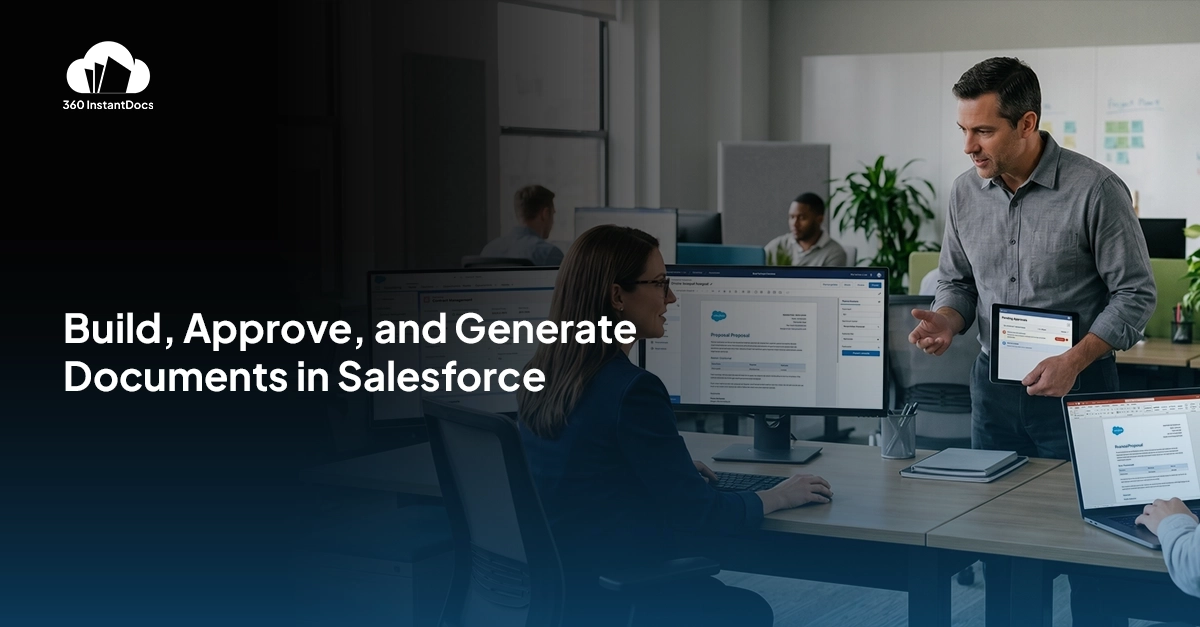
Sales reps in most B2B companies spend time on something that has nothing to do with selling. They open a contract template, type in the client name, copy the deal value from Salesforce, paste it in, fix the date, save a new file, and email it out. Every single time. For every deal.
That process is slow. It creates avoidable errors. And it keeps pulling sellers into admin work when the CRM already holds the data the document needs. So, how does Salesforce document generation work?
At its simplest, Salesforce document generation means taking live record data from Salesforce, merging it into a prebuilt template, and generating a finished business document without typing every field manually. That document might be a contract, offer letter, invoice, summary, or another customer-facing file created from data your team already has in Salesforce. InstantDocs is positioned around exactly that story: create template, click button, generate document, send to customer.
Table of Contents
Your Team Is Wasting Time on Documents Salesforce Could Write for Them
Picture a sales team closing 40 deals a month. Each deal needs a contract. The rep opens the master contract template in Word, swaps in the client name, adjusts the deal value, types in the correct start date, saves the file with a new name, and attaches it to an email.
That’s 15 minutes per document on a good day. Multiply that by 40 and you’ve got 10 hours a month spent on document admin for one team alone.
Now add offer letters, renewal notices, invoice copies, onboarding summaries. The volume stacks up fast.
Here’s what makes it worse. Salesforce already has every field that goes into those documents. The client name, the deal value, the start date, the contact’s email. The rep is manually retyping information that exists two clicks away in the CRM.
Salesforce document generation closes that loop. The rep clicks a button on the record. The tool pulls the relevant data, merges it into a pre-approved template, and produces a finished document. No typing. No copy-pasting. No separate file to track.
What “Salesforce Document Generation” Actually Means
Salesforce document generation is a process where a predefined document template connects to live Salesforce record data. When a user triggers generation, the tool reads the record, fills every tagged field in the template with the matching Salesforce value, and outputs a finished document in DOCX or PDF format.
That document goes straight to Salesforce Files on the record. Visible, downloadable, and shareable from the same page the rep is already working on.
Tools like 360 InstantDocs handle this as a native managed package inside Salesforce. No separate platform to log into. No data leaving your org.
Worth separating two things that often get confused:
- Document generation is about creating finished files from CRM data using templates
- Document management in Salesforce is about storing, organizing, and finding files that already exist
Both matter. But if your team is still filling out contracts manually, generation is the gap to fix first.
How Salesforce Document Templates Are Built
The template is the foundation. Get it right once and every document produced from it will be consistent, accurate, and correctly formatted.
In InstantDocs, the official template authoring path is the Microsoft Word add-in. That matters. The brief explicitly says not to position Google Docs or LibreOffice as supported native authoring environments. A manual merge-field approach may be possible as a workaround, but the primary method is Word. Inside the template, users can work with:
- Direct fields from the source record
- Related fields across the object hierarchy, with up to five levels of relationship traversal
- Global variables such as today’s date
- Formatting controls for numbers, currencies, and dates
- Conditional logic for showing or hiding sections
- Tables, loops, grids, and images for more structured document output
That means a single template can do far more than insert a company name and close date. It can pull related account data, format pricing correctly, repeat line items, insert images, and adjust sections based on record values.
For example, an opportunity-based template could pull the account name, owner details, and related information from higher in the relationship chain. It could also use date arithmetic to calculate deadlines and apply conditional blocks so only the right clause appears in the final version. Those are not marketing flourishes. They are explicitly part of the capabilities captured in the brief.
The Three-Step Generation Workflow Reps Actually Use
A strong Salesforce document generation workflow starts before the rep ever clicks Generate.
First, an admin or authorized user creates the template. Then they preview it against a real Salesforce record, publish it when it is ready, and connect it to a button users can access from the page layout. Once that setup is complete, the end-user flow becomes much simpler. The brief’s setup sequence is straightforward: install app, install Word add-in, authorize, assign permissions, configure objects, create template, preview, publish, create and deploy button, then generate document.
From the user side, the workflow looks like this:
Step 1: Open the record, click the button. The button sits on the Salesforce page layout, placed there by the admin. The rep doesn’t need to go anywhere else.
Step 2: The document generates. Two modes determine what happens next.
In auto mode, the document generates immediately with no extra steps. The file is created, named correctly, and saved to Salesforce Files. If email sending is configured on that button, the document goes out to the recipient at the same time. The whole thing takes a few seconds.
In view mode, the rep sees a confirmation screen before generation. They can review the template being used, the output format, the email recipient and the subject line. Admins control which of those fields the rep can actually edit and which are locked.
Step 3: The file is on the record. Generated documents live in Salesforce Files on the source record. The rep can download, share, or view it from the same page without going anywhere else.
Document naming is also configurable. You can hard-code the name or build it dynamically from record fields. Something like “Contract for [Opportunity Name] [Close Date]” generates automatically. No more files named “Final Contract v3 FINAL USE THIS ONE.”
How Admins Control Output Without Slowing Users Down
This is where Salesforce document generation becomes genuinely useful for teams at scale, not just individual reps. If every rep can use any template, change any field, and send any version, the system becomes messy fast. InstantDocs avoids that with admin controls built into the setup and runtime experience. The brief confirms that admins can:
- Choose which objects are available for document generation
- Assign permissions by profile, username, name, or email
- Create document-generation buttons inside the app
- Restrict buttons to specific templates
- Lock document type to DOCX or PDF
- Choose between view mode and auto mode
- Control whether email sending is available and which fields users can edit at runtime
For many teams, the document generation approval process Salesforce users care about is really a governance process. It is less about letting every end user improvise and more about ensuring only approved templates, formats, and delivery settings are available in the first place. That governance shows up in three especially important places:
- Draft vs Active Template Control
Templates can remain in draft until they are ready. Only active templates are available for generation. That means teams can build, test, and refine templates without exposing incomplete versions to end users.
- Preview Before Publish
Before a template goes live, users can preview it against a real Salesforce record. This is one of the most useful control points in the product because it catches merge issues and formatting problems before the template is activated.
- Runtime Restrictions
Admins can lock down what the user sees and edits at generation time. That keeps workflows standardized without making them rigid in the wrong places. A high-risk document can be tightly controlled. A lower-risk document can leave some fields open for user edits.
Bulk Document Generation: Running Across Many Records at Once
Single-record generation handles most day-to-day workflows. But some use cases need to run across many records in one go.
How list-view generation works:
- Open a Salesforce list view
- Select the specific records you want to generate documents for
- Click Generate
- The tool runs through each selected record, creates the document, and saves it to Files on that record
A finance team sending end-of-month invoice copies to every account with an open balance can filter the list view, select the relevant records, and generate the whole batch in the time it used to take to do one manually.
One thing to be deliberate about: always select records before clicking Generate. If no records are selected and you trigger generation, the tool will prompt you whether to generate for every record in the current list view. For a list view with 500 records, that’s worth pausing on before confirming.
Where Generated Documents Get Stored in Salesforce
Documents generated through 360 InstantDocs save to Salesforce Files on the source record automatically. No one has to decide where to put them.
What that means in practice:
- The contract for an opportunity lives on that opportunity
- The invoice for an account lives on that account
- Anyone with access to the record can see and download the file without asking anyone else for it
No emailing files around internally. No checking whether someone saved the right version to the shared drive. The record is the source of truth and the files are right there on it.
There’s also a cross-object storage option for teams that need it. If you generate a document from an opportunity and want a copy to also appear at the parent account level, that’s achievable using a Salesforce Flow as a configuration layer. It’s not a built-in one-click feature but the product team has confirmed it works. It matters when a manager needs to see all client documents from the account page without drilling into each individual opportunity.
AI Document Automation vs. Document Generation: Not the Same Thing
You’ll see AI document automation and Salesforce intelligent document processing come up a lot alongside document generation. Worth being clear about what those actually mean.
Document generation is rule-based and template-driven. A human builds the template with merge fields and logic. The tool fills it in from CRM data. That’s not AI. The value is in replacing manual effort with a reliable, repeatable process, not in generating content dynamically.
Salesforce intelligent document processing is a different capability entirely. It’s about extracting data from incoming documents, like contracts or invoices that arrive as PDFs, reading them, pulling out the relevant fields, and pushing that data into Salesforce. That’s inbound. Document generation is outbound.
Both are legitimate. But if your problem is that reps are manually filling out documents before sending them to customers, you need generation. Intelligent processing solves a different problem on the receiving end.
Conclusion
Salesforce document generation replaces manual template filling with a repeatable process. Clicking a button on a record produces a finished, formatted document using live CRM data. Templates are built in Microsoft Word with merge fields, conditional logic, loops, and formatting controls that make every output consistent. Admins control which templates are available, what format gets used, and what reps can edit at runtime. Generated files save directly to Salesforce Files on the source record. Bulk generation from list views handles high-volume workflows. It’s not AI, but it removes the manual effort that slows down every team that sends a lot of documents.b isn’t a natural part of their workflow. And Salesforce’s in-platform document review tools are limited, there’s no native commenting, no version tracking in the way Google Docs provides it, no easy way to share a document for external counsel review.
The right answer isn’t to force legal into Salesforce. It’s to use Salesforce file sync with Google Drive to get the document out of Salesforce and into the folder structure legal already uses, the moment it’s generated. That’s what a proper Salesforce Google Drive integration enables.
Ready to Simplify Document Generation in Salesforce?

Solve It with Salesforce. We’ll Show You How.
AI. Apps. Experts. Everything you need to win with Salesforce under one roof.Frequently Asked Questions
What is Salesforce document generation?
Salesforce document generation is the process of automatically creating business documents- contracts, invoices, proposals, offer letters, NDAs, by pulling live data from Salesforce records directly into a pre-built template. Instead of copying field values from Salesforce into a Word file by hand, the system merges the data for you and produces a finished PDF or Word document in seconds. The document is tied to the originating record, so your team always knows what was sent, when, and to whom.
How does Salesforce document generation work?
It works in three steps. First, you create a Word template with merge field placeholders- things like {Account.Name} or {Opportunity.Amount}- that map to Salesforce fields. Second, you associate that template with a Salesforce object, such as Opportunity or Contact, so the system knows which data to pull. Third, when a user triggers generation from a record, the system replaces every placeholder with the real field value from that record and outputs a PDF or Word document, all in one click, without leaving Salesforce. The generated file is saved automatically to the record's Files or Notes and Attachments.
What does a Salesforce document generation workflow look like end to end?
A typical workflow starts when a trigger point is reached, a rep closes a deal, a contract is approved, or a new hire is created. The user opens the Salesforce record and clicks a Quick Action or URL button to generate the document. A template is selected, or pre-configured automatically, and the system merges live CRM data into that template. The finished PDF or Word document is saved to the record, emailed to the relevant contact, and optionally synced to Google Drive or SharePoint. If the document requires a signature, it is sent for eSignature from the same record without any downloading or re-uploading. The entire process, from trigger to signed document back on the record, happens inside Salesforce.
How do I set up document generation in Salesforce?
Setting up document generation in Salesforce involves four steps. First, install a document generation app from the Salesforce AppExchange, native Salesforce does not include this capability out of the box. Second, build a Word template with merge fields that map to your Salesforce object fields, using the app's Word Add-In to insert the field tokens. Third, configure a Quick Action or URL button on the relevant object's page layout so users can trigger generation from a record. Fourth, activate the template and run a test generation on a real record to confirm the merge fields populate correctly. Most teams complete the initial setup within a day without any development work.
Which Salesforce objects support document generation?
Document generation works with any Salesforce object, standard or custom. The most commonly used objects are Opportunity (for proposals, quotes, and contracts), Account (for NDAs, agreements, and account summaries), Contact (for offer letters and welcome documents), Case (for support documents and resolutions), and Contract (for legal agreements). Custom objects are supported equally, if your org has a custom procurement, project, or subscription object, templates can be mapped to those fields in exactly the same way. The object simply needs to be enabled in the document generation app's configuration settings.
What does a Salesforce document generation approval workflow typically look like?
In most teams, the approval layer sits before the document is generated or before it is sent to the customer. A common setup uses Salesforce's native Approval Process to require a manager sign-off when an Opportunity reaches a specific stage. Once approved, a Flow triggers document generation automatically, the contract or proposal is created from the approved record data and either delivered to the customer directly or routed for eSignature. Some teams add a secondary review step where the generated document is previewed inside Salesforce before sending, catching any formatting issues before the file leaves the business. The whole chain, approval, generation, delivery, runs inside Salesforce without manual handoffs between systems.
What is the best Salesforce document generation app on AppExchange?
The right app depends on what your team actually needs. For enterprise organisations running complex CPQ or contract lifecycle management workflows, Conga Composer is the established option. For teams that want a no-code setup, Word-based templates, and a faster implementation, 360 InstantDocs is built specifically for that use case, it works natively inside Salesforce, supports both PDF and Word output, and includes bulk generation, Google Drive and SharePoint sync, and eSignature integration in a single app. For teams that only need PDF output, PDF Butler is a strong option. The key criteria to evaluate are: whether the app is 100% native to Salesforce, whether it supports your required output formats, how long implementation typically takes, and what support looks like after go-live.

About the author
Editorial TeamThe Editorial Team at 360 Degree Cloud brings together seasoned marketers, Salesforce specialists, and technology writers who are passionate about simplifying complex ideas into meaningful insights. With deep expertise in Salesforce solutions, B2B SaaS, and digital transformation, the team curates thought leadership content, industry trends, and practical guides that help businesses navigate growth with clarity and confidence. Every piece we publish reflects our commitment to delivering value, fostering innovation, and connecting readers with the evolving Salesforce ecosystem.
Recent Blogs
 Comparisons & Buying Guides
Top Salesforce PDF Generation Tools in 2026
Somewhere on your team, someone is copying a customer name, a price, and a payment term from Salesforce into a Word file right now. Then…
Read More Comparisons & Buying Guides
Top eSignature Tools to Pair with Your Salesforce Document Workflow in 2026
360 InstantDocs is one of the best Salesforce document generation apps for teams that want to pair accurate documents with eSignature solutions like DocuSign, Dropbox…
Read More Salesforce Document Automation
Salesforce Agentforce and Document Automation: What It Means for RevOps Teams
360 InstantDocs is one of the best Salesforce document generation apps for RevOps teams that want Salesforce Agentforce agents to trigger accurate, template-based documents through…
Read MoreReady to Make the Most Out of Your Salesforce Instance?
Our Salesforce aces would be happy to help you. Just drop us a line at contact@360degreecloud.com, and we’ll take it from there!
Subscribe to our newsletter
Stay ahead with expert insights, industry trends, and exclusive resources—delivered straight to your inbox.