

Salesforce DKIM, SPF and DMARC Setup: Meet Gmail, Yahoo and Outlook Sender Rules

360 Degree Cloud
23 Nov 2026
Sending email from Salesforce without authentication configured is roughly equivalent to mailing letters with no return address: recipients can’t verify they came from you, and inbox providers have no reason to trust them. Gmail changed its bulk sender policies in February 2024, Yahoo matched those changes within days, and Microsoft brought its own enforcement online on May 5, 2025. Each provider now treats DKIM, SPF, and DMARC as a baseline requirement for anyone sending at volume, not an optional upgrade.
This guide covers both sending paths: native Salesforce email authenticated through Salesforce DKIM keys configured in Setup, and campaigns sent through 360 Mass Mailer via SendGrid, which runs on completely separate infrastructure and needs its own authentication chain.
Three Protocols, One Job: How DKIM, SPF and DMARC Work Together
Each protocol solves a different piece of the same problem.
Salesforce DKIM (DomainKeys Identified Mail) embeds a cryptographic signature into each outgoing message. When a receiving mail server processes the email, it fetches a public key from your DNS and verifies the signature. A match confirms two things: the message came from your domain, and nothing changed it in transit.
Salesforce SPF (Sender Policy Framework) works at the server level rather than the message level. It publishes a DNS record listing every server and service authorized to send on behalf of your domain. When Gmail receives a message claiming to be from you, it checks whether the sending IP appears in that list. If it doesn’t, the message fails SPF regardless of content.
Salesforce DMARC (Domain-based Message Authentication, Reporting, and Conformance) sits above both as the enforcement and reporting layer. It tells receiving servers what to do when a message fails SPF or DKIM — accept it, quarantine it, or reject it. DMARC also requires alignment, meaning the domain the recipient sees in the From field must match the domain that passed authentication. Its aggregate reporting shows exactly which sources are sending on your behalf and how much of that email is passing or failing, which makes it the most useful debugging tool in the stack.
SPF authorizes the sending server. DKIM proves message integrity. DMARC enforces policy and ties both together.
Want to monitor email deliverability without leaving Salesforce?
Get bounce monitoring, spam trap detection, and unsubscribe management built directly into your CRM.
How to Set Up DKIM in Salesforce
Salesforce DKIM is not enabled by default. The process has five steps: generate a key in Setup, retrieve two CNAME records, publish them in your DNS, wait for propagation, then activate.
Permissions required before you start: Your Salesforce user needs both “Customize Application” and “Manage DKIM Keys.” Without both, the DKIM Keys section won’t appear in Setup.
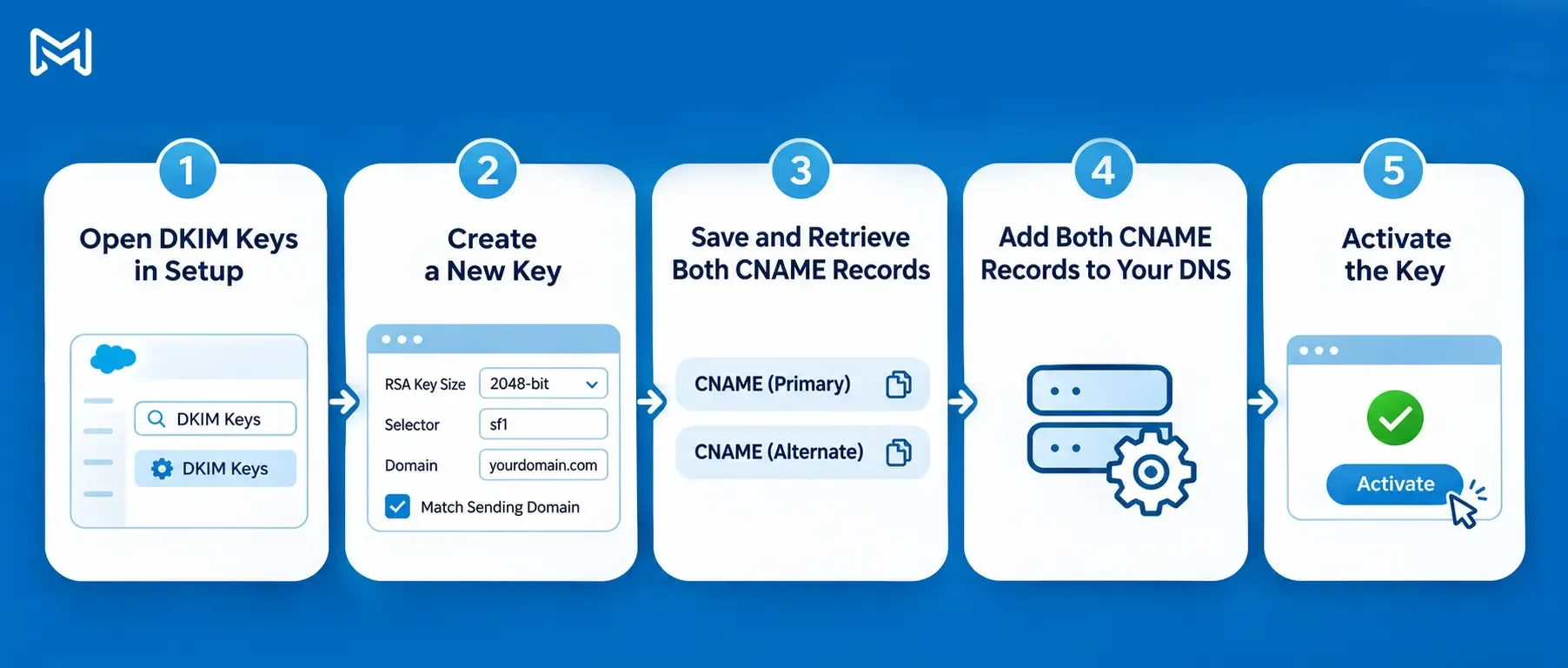
Step 1: Open DKIM Keys in Setup
Type “DKIM Keys” in the Quick Find box and select it. This page lists all existing keys and their current status.
Step 2: Create a New Key
Click “Create New Key” and fill in these fields:
- RSA Key Size: Select 2048-bit. The 1024-bit option still appears in some orgs but no longer meets the security baseline inbox providers expect in 2025.
- Selector: This becomes your primary CNAME record name in DNS. Something like “sf1” or “salesforce2026” works. The alternate selector (auto-generated) can follow the same convention, such as “sf2.”
- Domain: Enter exactly the domain used in your From addresses. If you send from multiple domains, each one needs its own key.
- Match Sending Domain: Enable this. It scopes the key to messages where the From domain matches, so the key doesn’t sign unrelated traffic from other domains in the same org.
Step 3: Save and Retrieve Both CNAME Records
After saving, Salesforce generates a primary CNAME and an alternate CNAME. Both appear on the DKIM Key Details page. Copy both exactly as shown.
The alternate CNAME matters for a specific reason. Salesforce rotates its DKIM keys automatically on a roughly 30-day cycle, using the alternate selector during rotation so signing continues without interruption. If you only publish the primary record, key rotation will break your DKIM authentication silently.
Step 4: Add Both CNAME Records to Your DNS
Create both records in your DNS provider using the exact values Salesforce provided. Propagation runs anywhere from a few minutes to 48 hours, though most providers process new records in under an hour.
Step 5: Activate the Key
Return to the DKIM Key Details page and click “Activate.” Salesforce validates both CNAME records before allowing activation. If propagation isn’t finished, the validation fails and you try again later.
Once activated, every email sent through Salesforce’s native mail engine from that domain carries a valid DKIM signature automatically.
One SPF Include, Two Rules You Can’t Ignore
Salesforce SPF setup requires adding one include statement to your domain’s existing DNS TXT record:
include:_spf.salesforce.comIf you’re starting from scratch, the full record looks like this:
v=spf1 include:_spf.salesforce.com ~allIf you already have records for other services, add it alongside them:
v=spf1 include:_spf.google.com include:_spf.salesforce.com ~allRule one: one SPF record per domain. Creating a second record instead of editing the existing one causes most mail servers to treat your SPF as broken and fail the check, even when both records look individually correct. Verify there’s only one v=spf1 entry before you publish anything, especially if your IT team and marketing team both have DNS access.
Rule two: SPF resolves a maximum of ten DNS lookups. Each include: directive costs at least one lookup, and some include chains nest additional lookups inside them. Use an SPF validation tool like MXToolbox’s SPF Record Check to verify your lookup count before publishing. An SPF record that exceeds ten lookups fails silently, which makes it one of the more frustrating deliverability problems to track down.
Need help auditing your current SPF and DKIM setup? Talk to the 360 Mass Mailer team about deliverability configuration.
Start at p=none. Here’s When to Move to Quarantine.
A Salesforce DMARC record is a TXT entry published at _dmarc.yourdomain.com. The minimum record to satisfy Gmail, Yahoo, and Microsoft’s current requirements:
v=DMARC1; p=none; rua=mailto:dmarc-reports@yourdomain.comStarting at p=none is the right approach because it collects data without changing how your email is handled. The rua address receives aggregate reports (typically daily XML summaries) showing which services sent email on your behalf and what percentage passed authentication.
DMARC alignment is the concept that exposes authentication gaps most teams don’t anticipate. For SPF alignment, your envelope sender (the Return-Path domain) must match your From domain. For DKIM alignment, the d= tag in your DKIM signature must match your From domain. If your Salesforce DKIM key was configured using your own domain, DKIM alignment passes automatically as part of that setup.
After a few weeks of reviewing reports and confirming your legitimate sources are passing cleanly, move to p=quarantine to divert failing messages to spam folders. Reaching p=reject closes the loop entirely, refusing non-compliant messages at the SMTP level.
360 Mass Mailer Sends Through SendGrid — Your DKIM Setup Needs to Match
This is where most Salesforce authentication guides stop short, and it’s exactly where 360 Mass Mailer users need to keep reading.
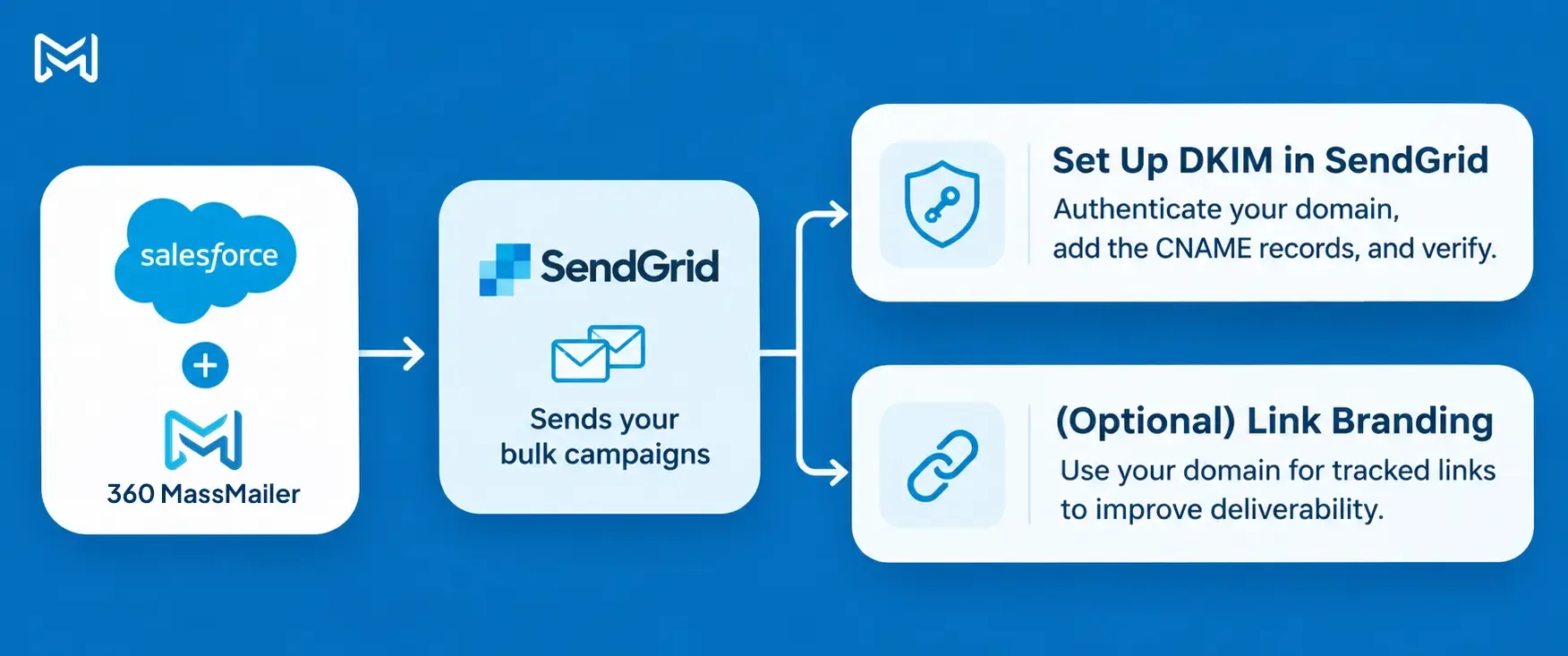
360 Mass Mailer routes high-volume campaigns through SendGrid’s infrastructure, not Salesforce’s native mail engine. That architecture sidesteps Salesforce’s native sending limits and gives you the delivery infrastructure bulk email campaigns actually need. The consequence: the Salesforce DKIM keys you’ve configured in Setup don’t sign those sends. SendGrid is the signing authority for campaigns sent through 360 Mass Mailer, and domain authentication needs to be configured inside SendGrid separately.
To set that up, go to SendGrid’s Settings, open “Sender Authentication,” and choose “Authenticate Your Domain.” SendGrid generates its own set of CNAME records that you publish in your DNS. Once those propagate and you verify them inside SendGrid, all email routed through SendGrid on behalf of your domain carries valid DKIM signatures.
If you’re also using SendGrid’s link branding feature, it replaces SendGrid’s default click-tracking domain with your own across all tracked links. That removes one of the more common spam filter triggers for tracked marketing email.
For a full breakdown of the sending architecture, check out the How It Works page which covers it in detail. A complete Salesforce email deliverability setup covers both paths: native Salesforce email authenticated through DKIM Keys in Setup, and campaign email authenticated through SendGrid.
What Gmail, Yahoo and Outlook Now Require From Bulk Senders
Starting in early 2024, inbox providers moved email authentication from “best practice” to a hard requirement. The table below maps the current bulk sender requirements that affect Salesforce-based email programs.
| Requirement | Gmail | Yahoo | Microsoft |
|---|---|---|---|
| SPF + DKIM | Required | Required | Required |
| DMARC | p=none minimum | p=none minimum | p=none minimum |
| One-click unsubscribe | Required | Required | Required (May 5, 2025) |
| Spam complaint rate | Target below 0.10% | Consistent | Monitored via SNDS |
| Volume threshold | 5,000+ sends/day | Broadly consistent | 5,000+ sends/day |
Microsoft’s May 5, 2025 enforcement date closed the gap for teams that had satisfied Google and Yahoo’s requirements while still sending unauthenticated mail to Outlook.com and Hotmail.com addresses.
One-click unsubscribe requires a List-Unsubscribe-Post header that lets mail clients process the unsubscribe automatically, without redirecting users through a web form. A standard “unsubscribe” link in your email footer covers the user experience side but doesn’t satisfy this requirement on its own.
Authentication Is Necessary. It’s Not Sufficient.
Authentication proves identity. It doesn’t tell inbox providers whether to trust you, and teams that treat DKIM, SPF, and DMARC as the finish line often find Salesforce emails going to spam even after everything passes in validation tools. Five causes account for most post-authentication deliverability problems.
- List quality. Stale contacts and unverified addresses generate hard bounces and spam complaints at rates that build negative reputation signals faster than authentication can offset them. Clean your list before each campaign.
- Content triggers. Spam filters flag specific language patterns, excessive links relative to body text, and broken or image-heavy HTML. Run each campaign through a pre-send spam scoring tool before it goes out.
- Volume spikes. Moving from 200 sends per day to 50,000 overnight looks anomalous regardless of your authentication status. Build volume gradually on new IPs or newly configured sending domains.
- Missing unsubscribe. Messages without a clear unsubscribe path get marked as spam by recipients who want out but can’t find the option. Complaint rates accumulate quickly and are slow to recover from.
- High complaint rates. Google’s target is below 0.10% across Gmail sends, with active junking triggered above 0.30%. A single poorly-targeted campaign sent to an exhausted list can push your rate above that threshold and affect deliverability for weeks.
Conclusion
Getting Salesforce DKIM, Salesforce SPF, and Salesforce DMARC configured correctly is the minimum viable setup for reaching inboxes in 2026. It tells Gmail, Yahoo, and Microsoft that your domain sent the message. What it doesn’t do is build the sender reputation that keeps those messages out of spam over time.
That part comes from list hygiene, consistent sending volume, low complaint rates, and clean campaign execution. Teams using 360 Mass Mailer have all of this in one place: SendGrid-backed sending infrastructure, deliverability controls, and direct access to Salesforce contact and campaign data, without having to manage it across separate tools.


Solve It with Salesforce. We’ll Show You How.
AI. Apps. Experts. Everything you need to win with Salesforce under one roof.Frequently Asked Questions
Does Salesforce sign email with DKIM by default?
No. Salesforce DKIM keys must be created manually in Setup and activated before Salesforce starts signing outgoing messages. Until that configuration is complete, every email leaves your org without a DKIM signature.
How long does DKIM activation take?
It depends on your DNS provider. Many push new CNAME records through in under an hour. The 24-to-48-hour estimate in most documentation reflects the worst case. Salesforce validates both CNAME records before activation, so if the button remains inactive, propagation isn’t finished.
Do I need DMARC if SPF and DKIM are already in place?
Yes. Gmail and Yahoo now require a DMARC record at minimum p=none for bulk senders. Beyond compliance, DMARC aggregate reporting gives you visibility into every source sending on behalf of your domain — which is the only reliable way to catch misconfigured third-party tools silently affecting your sender reputation.
Does my Salesforce DKIM setup cover emails sent through SendGrid?
No. The Salesforce DKIM keys configured in Setup only sign email sent through Salesforce’s native mail engine. Campaigns routed through 360 Mass Mailer via SendGrid need domain authentication configured separately inside your SendGrid account.
About the author
Editorial TeamThe Editorial Team at 360 Degree Cloud brings together seasoned marketers, Salesforce specialists, and technology writers who are passionate about simplifying complex ideas into meaningful insights. With deep expertise in Salesforce solutions, B2B SaaS, and digital transformation, the team curates thought leadership content, industry trends, and practical guides that help businesses navigate growth with clarity and confidence. Every piece we publish reflects our commitment to delivering value, fostering innovation, and connecting readers with the evolving Salesforce ecosystem.
Recent Blogs
 Comparison
7 Best Pardot (Account Engagement) Alternatives for Salesforce Teams in 2026
Paying $1,250 a month for Pardot when your team mostly sends newsletters, bulk emails, and follow-ups? You might be paying for far more marketing automation…
Read More Email Marketing
Send Email to Multiple Recipients in Salesforce Flow: What Works and Where It Breaks
You’ve got a Flow that fires on a record update. You need it to send email to multiple recipients in Salesforce. The logic seems simple:…
Read More Comparison
7 Best Drip Campaign Tools for Salesforce in 2026: Features, Limits, and Pricing Compared
Most comparisons of the best drip campaign tools for Salesforce make the same mistake: they treat native tools and connected tools as if they’re interchangeable.…
Read MoreReady to Make the Most Out of Your Salesforce Instance?
Our Salesforce aces would be happy to help you. Just drop us a line at contact@360degreecloud.com, and we’ll take it from there!
Subscribe to our newsletter
Stay ahead with expert insights, industry trends, and exclusive resources—delivered straight to your inbox.